Disclaimer: Printers use high-voltage components and internal heating elements. Always allow the device to cool down for 10 minutes before attempting to clear a paper jam or changing toner. Never insert metal objects into the paper feed or internal trays, as this can cause electrical shorts or fire hazards.
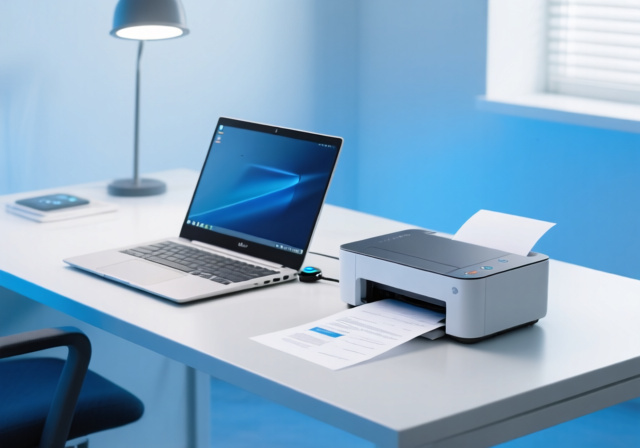
A Chromebook is wonderfully simple until a paper deadline turns its print dialog into a guessing game. I built this guide to the best printers for Chromebook around the things that actually prevent that moment: a clear connection method, a sensible paper supply, and features that match the work you print.
ChromeOS can print without traditional desktop driver hunting when the printer is discoverable through a supported network or USB path. That does not mean every old printer will appear automatically, so I favor current models with Wi-Fi, USB, or Ethernet where available and spell out the limitations instead of making blanket compatibility promises.
For 2026, the Brother HL-L2405W is my overall pick for people who mostly print documents: it combines 30-page-per-minute monochrome output, dual-band Wi-Fi, USB, and a 250-sheet tray. Need scanning and color instead? The HP OfficeJet Pro 8125e is the more capable home-office choice, while the HP DeskJet 2827e covers light print, copy, and scan jobs in a compact footprint.
Quick compatibility answer: look for a printer that can join the same Wi-Fi network as the Chromebook or connect by USB, then add it in ChromeOS Settings. IPP Everywhere, Mopria, or a listing on Google’s Works With Chromebook compatibility list are useful proof points; Bluetooth is not a Chromebook printing method.
How this list was checked: I compared the supplied current product specifications for connection options, paper handling, speed, duplexing, scan functions, and consumables. Wireless hardware alone is not a certification, so confirm a model on the manufacturer page or Google’s current compatible-printer list before ordering, especially if you use a managed school Chromebook.
Our 3 strongest Chromebook printer picks by real use case
The ranking below matches the full review order. A fast print-only laser wins for document-heavy households, an automatic-duplex all-in-one comes next for a busy desk, and the compact HP takes the budget slot for occasional color, copies, and scans.
Comparing Chromebook compatible printers for 2026
This quick overview puts the connection hardware and the practical workload first. Check the individual model listing for current ChromeOS support before purchase, but the Wi-Fi, USB, and Ethernet options listed here give you a dependable starting point for a Chromebook printer compatibility list.
| Product | Key Features | Action |
|---|---|---|
 Brother HL-L2405W
|
|
Check Latest Price |
 HP OfficeJet Pro 8125e
|
|
Check Latest Price |
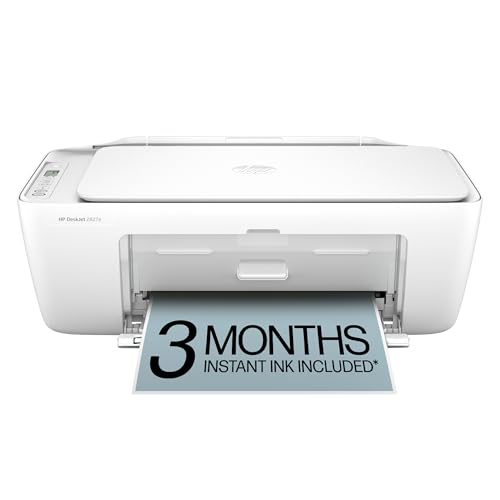 HP DeskJet 2827e
|
|
Check Latest Price |
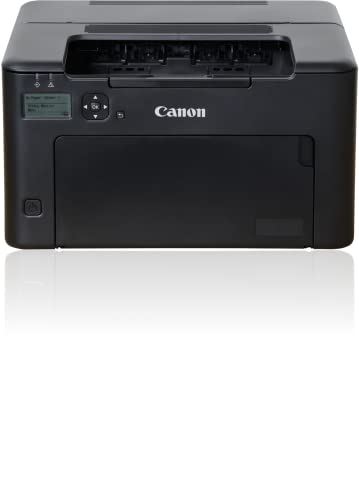 Canon imageCLASS LBP122dw
|
|
Check Latest Price |
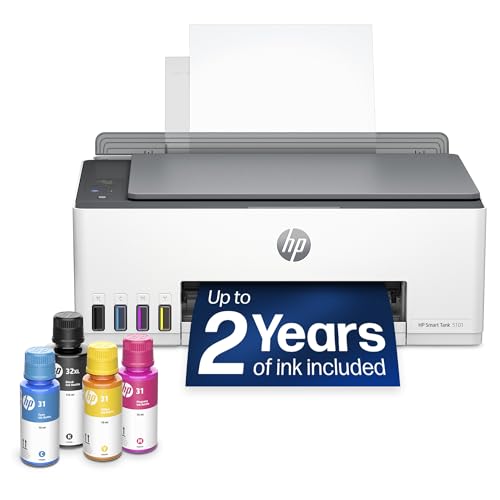 HP Smart Tank 5101
|
|
Check Latest Price |
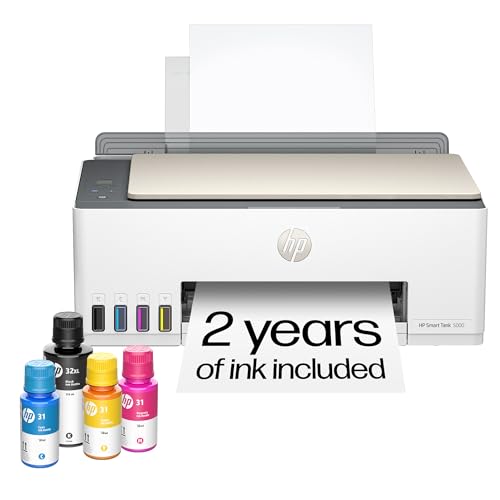 HP Smart Tank 5000
|
|
Check Latest Price |
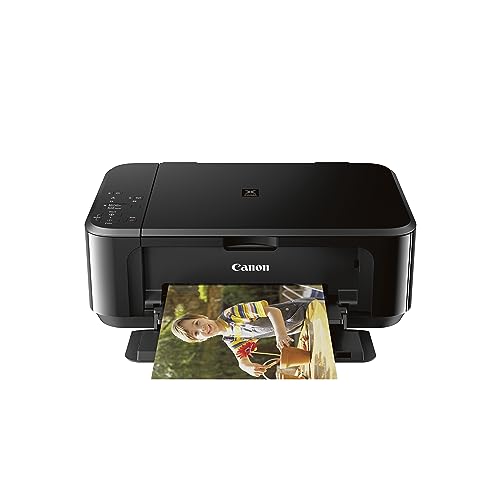 Canon PIXMA MG3620
|
|
Check Latest Price |
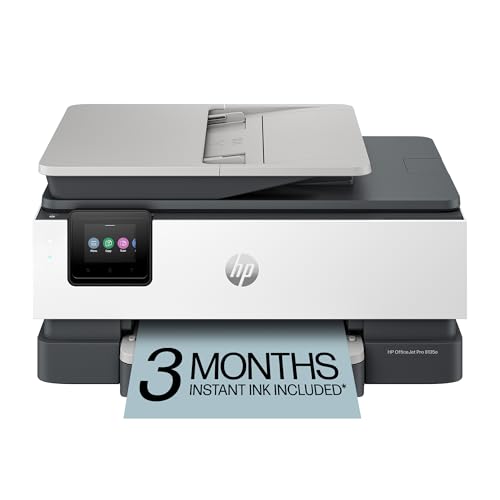 HP OfficeJet Pro 8135e
|
|
Check Latest Price |
There is no one-size-fits-all winner. A monochrome laser makes more sense for essays and shipping labels, while an ink tank suits frequent color output; an all-in-one earns its space only when scanning or copying is part of the weekly routine.
1. Brother HL-L2405W – Best document printer for busy Chromebook homes
Brother HL-L2405W Wireless Compact Monochrome Laser Printer...
30 ppm mono
Dual-band Wi-Fi and USB
250-sheet tray
What We Like
- Fast document output
- Dual-band Wi-Fi
- USB connection
- Large paper tray
What We Don't Like
- No scanner or copier
- Manual duplex
- Black and white only
The HL-L2405W is the pick I would put beside a Chromebook used for schoolwork, forms, invoices, and ordinary home-office documents. Its print-only design is a strength if you do not need a scanner, because the compact laser puts its space and budget toward sharp black text and a 250-sheet paper supply.
The standout detail is flexibility at connection time. Built-in 2.4 GHz and 5 GHz Wi-Fi can help in homes where newer routers separate their bands, and USB gives one nearby Chromebook a direct fallback path when the network is being difficult.
Speed that suits assignments and forms
Brother rates this monochrome laser at up to 30 pages per minute. That is a meaningful change from entry-level inkjets when a multi-page reading packet or last-minute class handout needs to be ready quickly.
Laser output is focused on text rather than photos, so it is a poor fit for artwork, color charts, or family snapshots. For the black-and-white documents most students print, that trade is easy to accept.
A 250-sheet tray reduces refill interruptions
The standard tray holds 250 sheets, and a manual feed slot handles envelopes or specialty sheets. That capacity is unusually useful in a small home office because the printer can stay loaded with plain paper rather than demanding attention every few days.
It prints both sides manually, not automatically. If double-sided packets are central to your workload, choose the Canon LBP122dw instead, or plan to turn and reload the pages here.
Wi-Fi and USB give you a recovery option
For wireless use, connect the printer and Chromebook to the same local network before adding it in ChromeOS. If discovery fails, USB can separate a printer problem from a router problem and is a practical advantage over models that depend entirely on one Wi-Fi band.
Brother Mobile Connect can help with supply status and mobile tasks, but Chromebook printing should still be tested from the ChromeOS print dialog. The printer needs to be visible to ChromeOS; an app is not a substitute for that check.
2. HP OfficeJet Pro 8125e – Best all-in-one for a Chromebook home office
HP OfficeJet Pro 8125e Wireless All-in-One Color Inkjet...
20 ppm black
ADF and auto duplex
Dual-band Wi-Fi
225-sheet tray
What We Like
- Automatic document feeder
- Automatic duplex
- Dual-band Wi-Fi
- Large paper tray
What We Don't Like
- One-sided ADF scans
- HP+ offer needs activation
The OfficeJet Pro 8125e makes the most sense when a Chromebook is handling more than occasional printing. It prints color documents, copies, scans, and feeds a stack of pages through its automatic document feeder, which is a much better fit for recurring forms and reports than lifting every sheet onto a flatbed.
It also earns the second spot because its feature set has fewer everyday compromises than the compact budget choices. A 225-sheet tray, automatic two-sided printing, and up to 20 ppm black output make it a credible shared-device option rather than a printer reserved for emergencies.
ADF scanning for multi-page work
The automatic document feeder is the reason to step up to this model. It can move a batch of pages through the scanner for copies or digital files, which removes the slowest part of handling school forms, receipts, and signed documents.
Its ADF scans one side at a time. A two-sided original therefore takes an extra pass, a detail worth knowing if you regularly archive double-sided contracts.
Two-sided output and a 225-sheet reserve
Automatic two-sided printing saves handling and helps keep document stacks slimmer. Combined with the 225-sheet input tray, it is far better suited to monthly reports and classroom materials than a 60-sheet entry-level unit.
Color output is useful for presentations and flyers, though anyone printing photo albums should choose based on photo-media requirements rather than business-paper speed. This is a work-first all-in-one printer.
Dual-band Wi-Fi for crowded home networks
The dual-band wireless hardware is reassuring when a household has many connected devices. Add it through the Chromebook’s printer settings after it joins the local network, and keep the printer awake during the first test job.
The included ink-service trial is optional to consider, not a reason to buy the machine. Read the HP+ activation and cartridge terms first, particularly if you prefer to manage supplies yourself.
3. HP DeskJet 2827e – Best compact color all-in-one for light jobs
HP DeskJet 2827e Wireless All-in-One Color Inkjet Printer...
Print copy scan
Wi-Fi Wireless Direct USB
60-sheet tray
What We Like
- Compact all-in-one
- Flatbed scanner
- Wi-Fi and USB
- Connection issue detection
What We Don't Like
- Small paper tray
- Manual duplex
- HP-chip cartridges
The DeskJet 2827e is for a Chromebook owner who wants color pages and occasional scans without giving a large device permanent desk space. It combines print, copy, and flatbed scanning, so it covers recipes, return labels, homework, and short documents in one small machine.
Its pace is deliberately modest at up to 7.5 ppm black and 5.5 ppm color. That is fine for light use, but it is the wrong choice for a household that routinely prints long packets or needs a printer to stay stocked for several people.
Color, copies, and flatbed scanning in a small footprint
A flatbed is handy for a single ID card, a book page, or an uneven original that should not go through a feeder. It also makes this model a reasonable starter all-in-one for shared family tasks.
There is no ADF, so scanning a lengthy packet is a page-by-page job. The OfficeJet Pro 8125e is the better answer when scanning volume becomes part of the routine.
Wireless Direct and USB make setup less restrictive
Its listed connections include wireless, Wireless Direct, and USB. That gives a Chromebook household more than one route to try, but the normal first choice remains joining both devices to the same Wi-Fi network and adding the printer in Settings.
HP describes its Wi-Fi as able to detect and address connection issues. Treat that as a helpful feature rather than a cure for a router guest network, an incorrect password, or a school-managed Chromebook with printing limits.
Know the 60-sheet and cartridge trade-offs
The 60-sheet input tray is sufficient when printing is occasional, yet it becomes a chore during a busy semester. Manual two-sided printing also asks you to reload pages rather than completing the job unattended.
It uses an HP-chip cartridge system, and the trial supply plan has terms after its introductory period. Check replacement-supply availability and subscription conditions before deciding that a small printer will remain the least costly option for your workload.
4. Canon imageCLASS LBP122dw – Best laser with automatic two-sided printing
Canon imageCLASS LBP122dw - Monochrome Duplex Wireless Laser...
30 ppm mono
Wi-Fi Ethernet USB
Auto duplex
150-sheet tray
What We Like
- Fast mono printing
- Automatic duplex
- Wi-Fi Ethernet USB
- Compact laser body
What We Don't Like
- No scanning or copying
- Black and white only
The Canon imageCLASS LBP122dw deserves attention from students who print a lot of text but do not need a scanner. Its 30 ppm monochrome rating matches the Brother’s speed class, while automatic two-sided printing can make long essays and readings less wasteful and less hands-on.
It is one of the more versatile connection choices in this group because it lists Wi-Fi, Ethernet, and USB. Ethernet is valuable for a fixed desk where a wired network is available, even though most Chromebook owners will start with Wi-Fi.
Automatic duplexing saves steps on long documents
Automatic two-sided printing is its clear practical edge over the Brother HL-L2405W. Select the double-sided setting in the ChromeOS print dialog, then let the printer handle page reversal instead of waiting for a prompt to reinsert paper.
That feature works best for reports, reading material, and reference pages. It cannot replace color output where graphs, visuals, or highlighted materials need to retain their meaning.
Three connection routes for a fixed workspace
Wi-Fi offers the convenience of printing from anywhere inside the local network. USB is helpful when only one Chromebook needs access, while Ethernet can give a stationary printer a wired path to the router.
Before treating any of those ports as a compatibility guarantee, check Canon’s current Chromebook guidance and run a test page during the return window. That simple step is more useful than relying on an old blog post or a general brand claim.
150 sheets hits a middle ground
The 150-sheet capacity is enough for a regular personal workload without making the machine as paper-focused as the Brother’s 250-sheet model. It suits a student desk where speed and duplexing matter more than copying.
It remains a single-function printer. Choose an all-in-one if even occasional scanning is a must, because a separate scanner quickly cancels the simplicity of this compact laser.
5. HP Smart Tank 5101 – Best for frequent printing without cartridges
HP Smart Tank 5101 Wireless All-in-One Refillable Printer...
Refillable all-in-one
Up to two years ink
12 ppm black
100-sheet tray
What We Like
- Included ink supply
- Low-waste refills
- Print scan copy
- Borderless printing
What We Don't Like
- 2.4 GHz Wi-Fi only
- Manual duplex
- No ADF
The Smart Tank 5101 changes the equation for a family that prints frequently in color. Rather than swapping cartridges, it uses refillable tanks and includes up to two years of ink, with a stated allowance of up to 6,000 black or color pages.
It can print, copy, and scan, plus borderless output for casual photos. The modest 12 ppm black and 5 ppm color ratings tell you it is built for economical steady use, not for racing through a large report before a meeting.
The refillable tank is the central benefit
Transparent tanks make it easier to see what is left, and the bottle system is designed for a mess-free refill. That can be less frustrating than discovering a cartridge has run dry halfway through a school project.
Included ink is a page-yield claim, not a promise that every household will get the same duration. Photo-heavy pages, dense color worksheets, and print-quality settings all affect how quickly the supply is used.
A 2.4 GHz Wi-Fi-only setup needs attention
This is the key network limitation: the wireless connection is 2.4 GHz only. Most routers still provide that band, but a home that uses separate network names must connect the printer to the correct one before the Chromebook will find it.
If your router runs a guest network, avoid placing the printer there because device-to-device discovery may be blocked. Keep the Chromebook and printer on the same normal local network for the first setup and test print.
Best for volume, not automatic paper handling
The 100-sheet tray is adequate for a household but smaller than the OfficeJet Pro alternatives. It also requires manual duplexing and lacks an ADF, so frequent double-sided paperwork or scan stacks will feel slower than the ink savings suggest.
For high-volume color worksheets, crafts, and home documents, those concessions can still be reasonable. For a paperwork-heavy desk, prioritize duplexing and a feeder first.
6. HP Smart Tank 5000 – Best low-waste all-in-one for color basics
HP Smart Tank 5000 Wireless All-in-One Ink Tank Printer...
Cartridge-free all-in-one
Up to two years ink
Borderless print
100-sheet tray
What We Like
- Refillable ink tanks
- Included ink supply
- Print scan copy
- Borderless pages
What We Don't Like
- Manual duplex
- No ADF
- Modest print speed
The Smart Tank 5000 is another cartridge-free option, aimed at a home that wants color documents, scans, copies, and occasional borderless prints without making disposable cartridges part of the routine. Its stated included supply also reaches up to two years and up to 6,000 black or color pages.
Choose it for the refillable approach rather than for raw speed. With up to 10 ppm black and 5 ppm color, it has the pace of a patient home printer, not a laser replacement for a deadline-heavy student.
Cartridge-free printing can cut routine waste
For a household that dislikes throwing out cartridges, refillable tanks offer a direct practical benefit. The bottle-based fill system is intended to keep refills clean, and the visible reservoirs help you plan supplies before a large job.
That does not remove maintenance from ownership. Keep the printer in regular use, follow its prompts, and use the recommended supplies so idle periods do not become a surprise on the day a color page is needed.
Color basics and borderless pages
Borderless printing is appealing for casual photos and small projects, while the flatbed scanner covers single-page copies and digital documents. It is a friendlier mix for a family than a print-only laser if color is non-negotiable.
There is no automatic feeder, so it is not intended for converting a pile of paperwork into PDFs. A Chromebook household that scans frequently should look toward the OfficeJet Pro models.
Plan around the 100-sheet tray and manual duplexing
The 100-sheet tray is a comfortable middle size for home use. Manual two-sided printing is less convenient, though, because it adds a reload step to every long duplex document.
Use the same-network rule during setup, then verify that a Chromebook can see it from the native printer list. If the printer is not discoverable, do not assume an application alone will complete the job.
7. Canon PIXMA MG3620 – Best compact choice with automatic duplex color printing
Canon Pixma MG3620 Wireless All-in-One Color Inkjet Printer...
Color print copy scan
Auto duplex
Mobile printing
100-sheet tray
What We Like
- Automatic duplex
- Print scan copy
- 100-sheet tray
- Compact design
What We Don't Like
- Older model
- No ADF
- Slow color output
The PIXMA MG3620 remains interesting because it puts automatic two-sided printing into a compact color all-in-one. It prints, copies, and scans, and its 100-sheet capacity gives it more breathing room than the HP DeskJet 2827e.
It is an older model in this roundup, so verify current availability and Canon’s current Chromebook compatibility guidance before purchase. That extra check matters more with older hardware than any broad statement about a brand.
Automatic duplexing is its useful differentiator
At this level of printer, automatic duplexing is a convenience people notice every week. It makes two-sided handouts and documents easier without the manual page flipping required by several ink-tank choices.
Its listed black speed is up to 9.9 ppm and color up to 5.7 ppm. That means duplexing may save handling, but it will not make a large color job fast.
A flexible 3-in-1 for occasional household tasks
The combination of printing, copying, and scanning is enough for school papers, basic photo projects, and standard forms. Mobile and tablet printing support is also useful in a mixed-device home with ChromeOS and other computers.
There is no ADF, so the compact body comes with a workflow limit. Use it for short scanning sessions, not for routinely digitizing multi-page files.
Set up through current Wi-Fi or USB guidance
Start by connecting it to the local Wi-Fi network, then use the Chromebook’s Add Printer screen. If you want a direct connection, check the product documentation for its USB setup requirements and use a data-capable cable.
Do not rely on retired cloud-print workarounds for an older printer. If native Wi-Fi or USB addition is not available, consult the official compatible-printer list or consider a current model with a documented ChromeOS path.
8. HP OfficeJet Pro 8135e – Best all-in-one when fax and wired networking matter
HP OfficeJet Pro 8135e Wireless All-in-One Color Inkjet...
Print scan copy fax
ADF and auto duplex
Wi-Fi Ethernet USB
225-sheet tray
What We Like
- Fax capability
- ADF and auto duplex
- Ethernet and USB
- Large paper tray
What We Don't Like
- One-sided ADF scans
- HP-chip cartridges
- HP+ offer needs activation
The OfficeJet Pro 8135e is the broadest-function model here for a small office that still needs faxing. It adds fax to color printing, copying, scanning, automatic duplexing, a 225-sheet tray, and a 2.7-inch touchscreen.
It is not automatically the better buy than the 8125e. Choose this version when fax, Ethernet, USB, or its extra control options solve a real need; otherwise, the simpler OfficeJet Pro already handles most Chromebook home-office tasks.
Fax and a full document workflow
Fax is increasingly specialized, but some medical, legal, and small-business workflows still request it. Keeping that capability in the same device as the scanner and copier can reduce the number of boxes on a compact work desk.
The ADF handles stacks, while automatic two-sided printing speeds finished documents. Remember that the feeder scans one side at a time, so double-sided originals still require a second pass.
Ethernet, Wi-Fi, and USB widen placement options
Dual-band Wi-Fi suits a normal shared network, Ethernet suits a fixed location near the router or switch, and USB offers a local alternative. Those options make it easier to choose a connection that fits the room instead of forcing the printer onto a weak wireless signal.
For Chromebook use, the first proof is still the native print test. Add the printer after the connection is live, print a simple document, and confirm the paper size and duplex settings before relying on it for a deadline.
Supply terms belong in the buying decision
This model uses cartridges with HP chips or circuitry, and its introductory ink-service offer requires HP+ activation. Those terms may suit some users, but a buyer who wants a refillable system or more manual control should compare them with the Smart Tank models.
Its 225-sheet tray and 20 ppm black speed support a serious document load. It is most appropriate when those capabilities will actually be used rather than simply taking up desk space.
Understanding Chromebook printer compatibility before you buy
A printer can be excellent on another computer and still be a poor Chromebook choice if its connection is undocumented or no longer supported. The safest order of evidence is a current Works With Chromebook listing or manufacturer ChromeOS Support statement, followed by a documented driver-free printing standard such as IPP Everywhere or Mopria.
What ChromeOS needs from a printer
ChromeOS normally discovers a printer over the local network and sends the job through its built-in print settings. A modern printer with Wi-Fi on the same network is the typical route; a USB printer connection can also work for a nearby device when the model and cable support it.
IPP Everywhere and Mopria are useful standards because they support driver-free printing. They are not interchangeable with a casual claim that every wireless printer will work, so confirm the exact model rather than assuming every HP, Canon, Brother, or Epson printer is identical.
Wi-Fi, USB, and Ethernet each solve a different problem
Wi-Fi: Best for multiple devices. The printer and Chromebook need the same local network, not a guest network that isolates devices.
USB: A sensible fallback for one nearby Chromebook. Use a suitable data cable and check whether the printer appears in ChromeOS settings.
Ethernet: Helpful for a fixed printer with a wired router connection. The Chromebook can still print over the local network once the printer is reachable.
Bluetooth: Do not buy a printer expecting Bluetooth printing from ChromeOS. It is not a supported Chromebook printing path.
A short verification checklist
Find the exact model, not just its product family, on the manufacturer’s current support page or Google’s compatibility list.
Confirm whether your router provides the band the printer needs; several budget printers use 2.4 GHz only.
Check for USB or Ethernet if wireless reliability is a concern.
For a school device, ask the administrator whether printing and adding printers are allowed.
Print a test page before discarding the packaging or waiting until a time-sensitive job is due.
How to choose the best printer for your Chromebook
Compatibility gets the printer into the Chromebook’s print dialog; the rest of the decision is about what you expect it to do after that. Start with your heaviest regular task rather than the feature you may use once a year.
Match the print engine to your pages
For essays, bills, forms, and shipping labels, a monochrome laser printer compatible with Chromebook use is usually the straightforward option. Fast output, toner-based text, and larger trays make the Brother HL-L2405W or Canon LBP122dw more comfortable for sustained document work.
Choose an inkjet all-in-one for color, copies, and scanning. Ink tanks make particular sense for frequent color output; a cartridge all-in-one makes more sense when the printer will be used lightly and physical size matters more than volume.
Decide whether automation is worth desk space
Automatic two-sided printing is one of the best quality-of-life features for students and office users. An automatic document feeder matters just as much if you routinely scan or copy a stack; without it, every page needs individual placement.
Paper capacity has a similar effect. A 60-sheet printer is fine for a few weekly pages, but a 150-, 225-, or 250-sheet tray is less disruptive when several people share the device.
Look at supply rules, not just the printer body
Before choosing between low-cost cartridges, a subscription option, toner, or refillable bottles, check the actual replacement method and any enrollment terms. Forum discussions repeatedly show that users care about avoiding surprise supply limits and recurring plans as much as they care about the initial printer.
A tank printer offers high page yield but asks you to keep it maintained; a laser is appealing for crisp document output; cartridges can be convenient for low-volume color work. Choose the system you are willing to own, not the one with the loudest claim on the box.
Chromebook printer setup and troubleshooting guide
Most setup failures come down to network separation, an incomplete printer connection, or a job stuck in the queue. Start with Wi-Fi if the printer is shared, then use USB as a useful diagnostic option when the model supports it.
Set up a wireless printer in ChromeOS
Finish the printer’s own Wi-Fi setup from its control panel or official app, including its network password.
Connect the Chromebook to that same local network. Do not use a guest network for one device and the main network for the other.
Open ChromeOS Settings, search for Printers, and choose the option to add a printer.
Select the detected model, then send a short test document from the regular ChromeOS print dialog.
Set paper size, color preference, and two-sided printing only after the first job succeeds.
The wording of settings can change with ChromeOS updates, so searching Settings for “Printers” is often faster than following an old navigation path. If the device is managed by a school or employer, an administrator may control which printers can be added.
Use USB when a direct connection is more practical
Connect the printer directly with the appropriate USB data cable, power it on, and then repeat the Add Printer step in ChromeOS. USB is especially useful for a dorm desk or a location with unreliable Wi-Fi, though it only serves the connected Chromebook unless the printer is also networked.
If ChromeOS does not see it, try another cable or port and verify that the printer model supports USB printing rather than assuming the connector is active for every function. A USB connection is not the same as Bluetooth, which ChromeOS does not support for printing.
Fix a printer that appears but will not print
Check paper, ink or toner alerts, cover closures, and any error on the printer panel first.
Cancel the stuck job, then restart both the printer and Chromebook.
Confirm both devices still use the same Wi-Fi network after a router restart or password change.
Remove the printer from ChromeOS and add it again if it is online but keeps rejecting jobs.
Install current printer firmware only from the manufacturer, then retest with a simple document.
Try USB, where supported, to find out whether the issue is wireless discovery rather than the printer itself.
This sequence addresses a common forum complaint: the printer was working, then a Chromebook stopped sending jobs. Avoid resetting everything at once; a single test after each step tells you whether the failure is the queue, the router, the printer, or device policy.
Best printers for Chromebook FAQs
What is the most compatible printer for a Chromebook?
The safest choice is a current model listed as Works With Chromebook or documented by its maker for ChromeOS. Also look for a clear Wi-Fi or USB setup path and driver-free standards such as IPP Everywhere or Mopria.
Will a Chromebook work with a wireless printer?
Yes. Connect the printer and Chromebook to the same local Wi-Fi network, then add the printer in ChromeOS Settings. A guest network can block device discovery, so use the main local network for the first test.
Do HP printers work with Chromebooks?
Many current HP models can work with ChromeOS, but compatibility is model-specific. Confirm the exact printer in current HP support information or the Google compatible-printer list, then test native printing rather than relying only on an app.
Do Canon printers work with Chromebooks?
Many Canon models offer a Wi-Fi or USB route that can work with a Chromebook, but you should verify the exact model in Canon’s current Chromebook guidance. The Canon LBP122dw also lists Ethernet for a fixed network setup.
Can a Chromebook connect to any printer?
No. A Chromebook needs a printer it can add through a supported Wi-Fi, USB, or network method. Older models without a current documented ChromeOS path may not appear, so check compatibility before buying or keeping a legacy printer.
Final recommendations
For document-first Chromebook users, choose the Brother HL-L2405W for its 30 ppm output, dual-band Wi-Fi, USB option, and 250-sheet tray. Pick the Canon imageCLASS LBP122dw instead if automatic two-sided printing is more important than maximum paper capacity.
For a shared home office, the HP OfficeJet Pro 8125e is the better all-rounder because it adds an ADF, color, automatic duplexing, and a 225-sheet tray. The HP DeskJet 2827e is the sensible compact alternative for light color printing and flatbed scans, while either Smart Tank fits people who expect to print frequently and prefer refillable ink.
The best printers for Chromebook in 2026 are the ones whose connection method and paper workflow match your actual day. Verify the exact model’s current ChromeOS status, run a test page early, and choose the printer that will be easy to live with after the first week.

![Best Label Printers [cy]: Top 10 Thermal Printers and Makers for Business and Home](https://www.guidespot.com/wp-content/uploads/2026/07/featured-update-70053-1784150192753-370x245.jpg "10 Best Label Printers (2026): Tested & Reviewed for Home & Office")