If you’ve ever wondered why photos look different on your screen compared to prints, or why colors appear washed out on your display, you’re experiencing the effects of poor monitor calibration. I’ve been calibrating displays for over a decade, and I can tell you that proper calibration transforms your entire computing experience – from photo editing to everyday web browsing.
Monitor calibration adjusts your display’s color output to match standardized color spaces, ensuring what you see on screen accurately represents the actual colors. This process involves tweaking settings like brightness, contrast, gamma, and color temperature to achieve optimal accuracy. Whether you’re a creative professional requiring precise color reproduction or simply want your display to look its best, calibration makes a significant difference.
In this comprehensive guide, I’ll walk you through every calibration method available in 2026, from free built-in tools to professional hardware solutions. We’ll cover Windows, Mac, and Linux platforms, explore both software and hardware calibration options, and help you choose the right approach for your needs and budget. By the end, you’ll have the knowledge to achieve professional-grade color accuracy on any monitor.
Understanding Monitor Calibration Fundamentals
Before diving into calibration procedures, let’s establish what we’re actually adjusting. Monitor calibration involves optimizing several key parameters that affect how colors appear on your screen. Think of it as tuning a musical instrument – each adjustment brings you closer to perfect harmony.
The primary adjustments include brightness (luminance), which controls how much light your monitor emits; contrast, determining the difference between the darkest blacks and brightest whites; gamma, affecting mid-tone brightness and color transitions; color temperature, measured in Kelvin, which shifts colors between warm (yellowish) and cool (bluish); and color gamut, defining the range of colors your monitor can display.
Most monitors ship with settings optimized for showroom appeal rather than accuracy. Manufacturers often boost brightness to eye-searing levels and oversaturate colors to make displays appear more vibrant. While this might look impressive at first glance, it leads to eye strain during extended use and misrepresents actual colors. Proper calibration fixes these issues, providing a more comfortable viewing experience and ensuring color fidelity.
The standard targets for calibration include a white point of 6500K (D65), matching natural daylight; gamma of 2.2 for Windows and general use, or 1.8 for older Mac workflows; brightness around 120 cd/m² for typical indoor lighting; and the sRGB color space for web content, or Adobe RGB for professional photography. These standards ensure consistency across different devices and viewing conditions.
Preparing Your Monitor for Calibration
Successful calibration starts with proper preparation. Your monitor needs time to warm up and stabilize, and your environment should support accurate color evaluation. Skipping these steps undermines even the most sophisticated calibration efforts.
First, let your monitor warm up for at least 30 minutes before calibration. LCD panels need time to reach stable operating temperature, and backlights require warming to deliver consistent output. OLED displays warm up faster but still benefit from a 15-minute stabilization period. During this time, display a neutral gray background rather than leaving the screen idle.
Clean your screen thoroughly using appropriate cleaning solutions and microfiber cloths. Dust, fingerprints, and smudges affect perceived colors and can interfere with hardware calibration sensors. Pay special attention to the areas where you’ll place a colorimeter if using hardware calibration.
Control your ambient lighting carefully. Ideally, calibrate in the lighting conditions where you’ll primarily use the monitor. Avoid direct sunlight or bright lights reflecting off the screen. For color-critical work, consider using bias lighting behind the monitor – a 6500K LED strip creates consistent background illumination that reduces eye strain and improves perceived contrast.
Reset your monitor to factory defaults before beginning. Access your monitor’s on-screen display (OSD) menu using the physical buttons, navigate to the reset or factory defaults option, and confirm the reset. This ensures you’re starting from a known baseline rather than building upon previous adjustments that might conflict with calibration.
Windows Monitor Calibration: Built-in Tools and Methods
Windows provides several built-in calibration tools that deliver surprisingly good results without additional software or hardware. I’ll guide you through the Windows Display Color Calibration tool, available in Windows 10 and 11, which offers a systematic approach to basic calibration.
To access the calibration tool, right-click on your desktop and select “Display settings,” then scroll down and click “Advanced display settings.” Select “Display adapter properties” for your monitor, navigate to the “Color Management” tab, and click “Color Management” followed by the “Advanced” tab. Finally, click “Calibrate display” to launch the Display Color Calibration wizard.
The wizard guides you through adjusting gamma, brightness, contrast, and color balance. For gamma adjustment, you’ll see three columns with dots inside circles. Adjust the slider until the dots blend seamlessly with their backgrounds – this ensures proper mid-tone reproduction. The brightness adjustment shows a shirt with visible but not washed-out details in both the shoulders and creases. Set brightness so you can distinguish these subtle details without losing shadow information.
Contrast adjustment displays a similar image focusing on button and wrinkle visibility. Increase contrast as high as possible while maintaining visible details in bright areas. The color balance step presents gray bars that should appear neutral without color casts. Adjust the red, green, and blue sliders to remove any unwanted tints – this often requires subtle adjustments and careful observation.
Windows 11 introduces additional calibration features through the Settings app. Navigate to Settings > System > Display > Advanced display, then select “Display adapter properties” and access HDR calibration if your monitor supports it. HDR calibration optimizes the extended brightness and color range of HDR displays, following similar principles but with expanded parameters.
For more precise control, use the Windows Color Management system to install custom ICC profiles. Many monitor manufacturers provide ICC profiles for their displays, downloadable from support websites. Install these by opening Color Management from Control Panel, clicking “Add,” browsing to the ICC file, and setting it as the default profile for your display.
Mac Monitor Calibration: Display Calibrator Assistant
macOS includes the Display Calibrator Assistant, a sophisticated tool that creates custom color profiles for your display. Apple’s approach emphasizes visual calibration with optional expert controls for advanced users. The process adapts to your specific display type and viewing conditions.
Launch the Display Calibrator Assistant by opening System Settings (or System Preferences on older macOS versions), clicking “Displays,” then “Color” or “Display,” and selecting “Calibrate.” The assistant presents different options depending on your display type and whether you enable expert mode. I recommend enabling expert mode for maximum control over calibration parameters.
In expert mode, the assistant guides you through native gamma adjustment using Apple’s unique visual matching system. You’ll see patterns of parallel lines and apple logos, adjusting sliders until the logos blend with their backgrounds. This method effectively determines your display’s native gamma response curve. Target white point selection offers several presets including D50 (5000K) for print work, D65 (6500K) for general use, and native white point options.
The administrator options allow setting the profile for all users or just your account. Name your profile descriptively, including the date and lighting conditions for future reference. macOS automatically applies the profile and stores it in the ColorSync folder. You can create multiple profiles for different lighting conditions or work requirements, switching between them through Display preferences.
For displays with True Tone, decide whether to disable it during color-critical work. True Tone adjusts display colors based on ambient lighting, which aids viewing comfort but interferes with color accuracy. Professional users typically disable True Tone when color precision matters, re-enabling it for general computing tasks.
macOS Ventura and newer versions include enhanced calibration features for Apple’s ProMotion and XDR displays. These displays support wider color gamuts and higher dynamic range, requiring specialized calibration approaches. The system automatically detects these capabilities and adjusts the calibration process accordingly.
Linux Monitor Calibration Solutions
Linux offers powerful calibration tools, though they require more technical knowledge than Windows or Mac equivalents. The open-source community has developed excellent solutions that rival commercial alternatives. I’ll cover the most effective methods for different Linux distributions.
DisplayCAL represents the gold standard for Linux monitor calibration. Although development has transitioned to community maintenance, it remains highly effective. Install DisplayCAL through your distribution’s package manager or download from the project repository. The software supports numerous colorimeters and provides professional-grade calibration capabilities.
For Ubuntu and Debian-based distributions, use the built-in GNOME Color Manager. Access it through Settings > Color, where you can create profiles using connected colorimeters or install existing ICC profiles. The interface simplifies the calibration process while maintaining professional accuracy. KDE users can utilize colord-kde, offering similar functionality within the KDE desktop environment.
Command-line enthusiasts can use xgamma for quick adjustments. The command “xgamma -gamma 2.2” sets display gamma, while individual channel adjustments like “xgamma -rgamma 1.0 -ggamma 0.9 -bgamma 0.8” fine-tune color balance. These adjustments apply immediately but don’t persist across reboots without configuration file modifications.
The xcalib utility loads ICC profiles from the terminal, useful for scripting and automation. Install xcalib through your package manager, then load profiles with “xcalib /path/to/profile.icc”. Add this command to startup scripts for automatic profile loading. Monitor profile switching becomes seamless with simple bash scripts toggling between different ICC files.
Redshift and f.lux provide automatic color temperature adjustment based on time of day, similar to Night Light on other platforms. While not traditional calibration tools, they reduce blue light exposure during evening hours. Configure them to pause during color-critical work, as they alter color accuracy significantly.
Hardware Calibration: Professional Tools and Techniques
Hardware calibration using colorimeters or spectrophotometers delivers the highest accuracy by measuring actual light output from your display. These devices create precise ICC profiles based on objective measurements rather than subjective visual assessment. I’ve tested numerous calibrators, and certain models consistently deliver professional results.
Entry-level colorimeters like the Datacolor SpyderX Express offer excellent value for hobbyists and semi-professionals. Priced around $100-150, they provide accurate calibration for standard monitors. The included software walks through the process step-by-step, making hardware calibration accessible to beginners. Results typically achieve Delta E values under 3, imperceptible to most users.
Professional options include the Calibrite ColorChecker Display Pro (formerly X-Rite i1Display Pro) and Datacolor SpyderX Elite. These advanced colorimeters cost $250-400 but offer features like ambient light monitoring, projector calibration, and multi-monitor matching. They measure more color patches for increased accuracy, achieving Delta E values below 1 for color-critical applications.
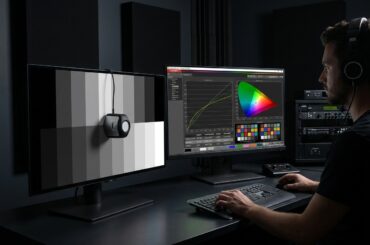
The calibration process involves placing the device on your screen using a counterweight or screen holder, ensuring proper contact without applying excessive pressure. The software displays color patches while the colorimeter measures output, building a complete picture of your display’s color reproduction capabilities. This typically takes 5-15 minutes depending on the number of measurements.
Advanced features include hardware LUT calibration for compatible professional monitors. Instead of applying corrections through software, hardware calibration writes directly to the monitor’s internal lookup tables. This preserves the full bit depth of color data and ensures calibration remains consistent across all connected devices and operating systems.
Verification remains crucial after hardware calibration. Most calibration software includes verification modes that re-measure key colors to confirm accuracy. Run verification immediately after calibration and periodically thereafter. If Delta E values exceed your requirements, recalibrate rather than attempting manual adjustments.
Advanced Calibration Settings and Optimization
Beyond basic calibration, advanced settings fine-tune your display for specific workflows and viewing conditions. Understanding these parameters helps achieve optimal results for your particular needs, whether that’s photo editing, video production, or extended coding sessions.
Black point compensation affects shadow detail visibility. Some calibration software allows raising the black point slightly, improving shadow visibility at the expense of absolute black depth. This proves useful for web design where pure black rarely appears, but photographers might prefer maintaining maximum contrast for print preparation.
Luminance uniformity correction addresses brightness variations across the screen. High-end monitors include built-in uniformity compensation, but software solutions exist for standard displays. These create compensation matrices that adjust output based on screen position, though this may reduce maximum brightness and affect response times.
For multi-monitor setups, matching displays becomes critical. Even identical monitors exhibit variations requiring individual calibration. Use hardware calibration to create matched profiles, targeting identical white points, gamma, and luminance values. Some calibration software includes specific multi-display matching modes that optimize consistency across screens.
Consider creating multiple calibration profiles for different tasks. A bright, vivid profile works well for general computing and entertainment, while a dimmer, more accurate profile suits extended photo editing sessions. Switching profiles based on ambient lighting also improves viewing comfort – brighter profiles for daytime, dimmer for evening work.
HDR calibration introduces additional complexity with expanded brightness and color ranges. Windows HDR Calibration app helps optimize HDR displays, while professional tools like CalMAN or ChromaPure provide comprehensive HDR calibration. Key parameters include peak brightness, EOTF tracking, and color volume mapping. HDR calibration often requires multiple profiles for different HDR standards like HDR10, Dolby Vision, or HLG.
Troubleshooting Common Calibration Issues
Calibration problems frustrate even experienced users. I’ve encountered numerous issues over the years and developed systematic approaches to resolve them. Understanding common problems and their solutions saves time and ensures successful calibration.
Color casts persisting after calibration often indicate hardware limitations or interference from other color management systems. Disable any monitor vendor color enhancement features, graphics driver color adjustments, and third-party color management software. Reset graphics driver color settings to defaults, then recalibrate. If problems persist, the monitor may have inherent color bias requiring professional uniformity correction.
Profiles not loading at startup plague many users. On Windows, use the Color Profile Keeper utility to ensure profiles load correctly. Mac users should verify profile assignments in ColorSync Utility. Linux users need to add xcalib or dispwin commands to startup scripts. Some applications override system profiles, requiring application-specific color management settings.
Banding in gradients after calibration suggests bit depth limitations. Ensure your graphics card outputs at least 8-bit color, preferably 10-bit for professional work. Enable dithering in graphics driver settings to smooth gradients. Some monitors include gradient smoothing options that help minimize banding without affecting color accuracy.
Inconsistent colors between applications indicate color management conflicts. Creative applications like Photoshop use their own color management engines that may interpret profiles differently. Ensure applications are configured to use the system monitor profile and understand the difference between color-managed and non-color-managed applications.
Calibration drift over time is normal as monitors age. LED backlights dim and color shift gradually, while OLED panels may develop slight image retention. Recalibrate monthly for color-critical work, quarterly for general use. Track Delta E values over time – increasing errors indicate monitor degradation requiring replacement consideration.
Maintaining Calibration Accuracy
Calibration isn’t a one-time process. Displays drift over time, and environmental changes affect perceived colors. Establishing a maintenance routine ensures consistent accuracy and extends display lifespan.
Schedule regular recalibration based on usage patterns. Professional photographers and designers should recalibrate monthly or after 200 hours of use. Casual users can extend this to quarterly intervals. Mark calibration dates in your calendar and maintain a log documenting settings and environmental conditions during each calibration session.
Monitor your display’s performance metrics if available through OSD menus or calibration software. Track brightness levels, color temperature, and operating hours. Sudden changes indicate potential hardware issues requiring attention. Some professional monitors include built-in calibration scheduling and drift compensation.
Environmental consistency improves calibration longevity. Maintain stable room temperature and humidity levels when possible. Avoid placing monitors near heating vents or windows with variable sunlight. Consider using window treatments or bias lighting to create consistent viewing conditions throughout the day.
Clean your monitor regularly using appropriate methods. Dust accumulation affects perceived brightness and can interfere with colorimeter readings. Use microfiber cloths and approved cleaning solutions, avoiding harsh chemicals that might damage anti-glare coatings. Clean colorimeter lenses before each use to ensure accurate measurements.
Document your calibration settings for disaster recovery. Save ICC profiles to cloud storage along with calibration reports detailing measured values. Record OSD settings including brightness, contrast, and color temperature values. This documentation proves invaluable when replacing monitors or troubleshooting issues.
Future-Proofing Your Calibration Setup
Display technology evolves rapidly, with new standards and capabilities emerging regularly. Understanding upcoming trends helps make informed decisions about calibration tools and techniques that remain relevant as technology advances.
Mini-LED and MicroLED displays introduce thousands of local dimming zones, requiring sophisticated calibration approaches. These displays achieve higher contrast ratios and peak brightness levels, necessitating calibration tools capable of measuring extended dynamic ranges. Current high-end colorimeters already support these capabilities, making them worthwhile investments.
Quantum dot technology expands color gamuts beyond traditional limits. Calibrating these wide-gamut displays requires understanding color space mapping and gamut compression. Future calibration software will likely include AI-assisted gamut mapping to optimize color reproduction for different content types automatically.
Variable refresh rate displays and high refresh rate panels present calibration challenges. Color accuracy can vary with refresh rate changes, requiring multiple calibration profiles or dynamic adjustment systems. Some manufacturers already include refresh-rate-aware calibration in flagship models.
Cloud-based calibration profiles may become standard, allowing seamless synchronization across devices. Imagine your calibration following you between workstations or automatically adjusting when connecting to different displays. This technology exists in nascent forms but will likely expand significantly.
Conclusion
Monitor calibration transforms your display from a generic light box into a precision instrument for accurate color reproduction. Whether you choose basic software calibration or invest in professional hardware tools, the improvement in color accuracy and viewing comfort justifies the effort. Regular calibration maintains this accuracy, ensuring consistent results whether you’re editing photos, designing graphics, or simply enjoying content as creators intended.
Start with your operating system’s built-in tools to understand calibration fundamentals, then consider hardware calibration if color accuracy proves critical for your work. Remember that perfect calibration doesn’t exist – instead, aim for consistency and accuracy appropriate to your needs. With the knowledge from this guide, you’re equipped to achieve professional-grade display calibration regardless of your budget or technical expertise.
The time invested in proper monitor calibration pays dividends through reduced eye strain, accurate color representation, and confidence that what you see on screen matches your intended output. As display technology continues advancing, these fundamental calibration principles remain relevant, ensuring your investment in knowledge and tools continues delivering value for years to come.