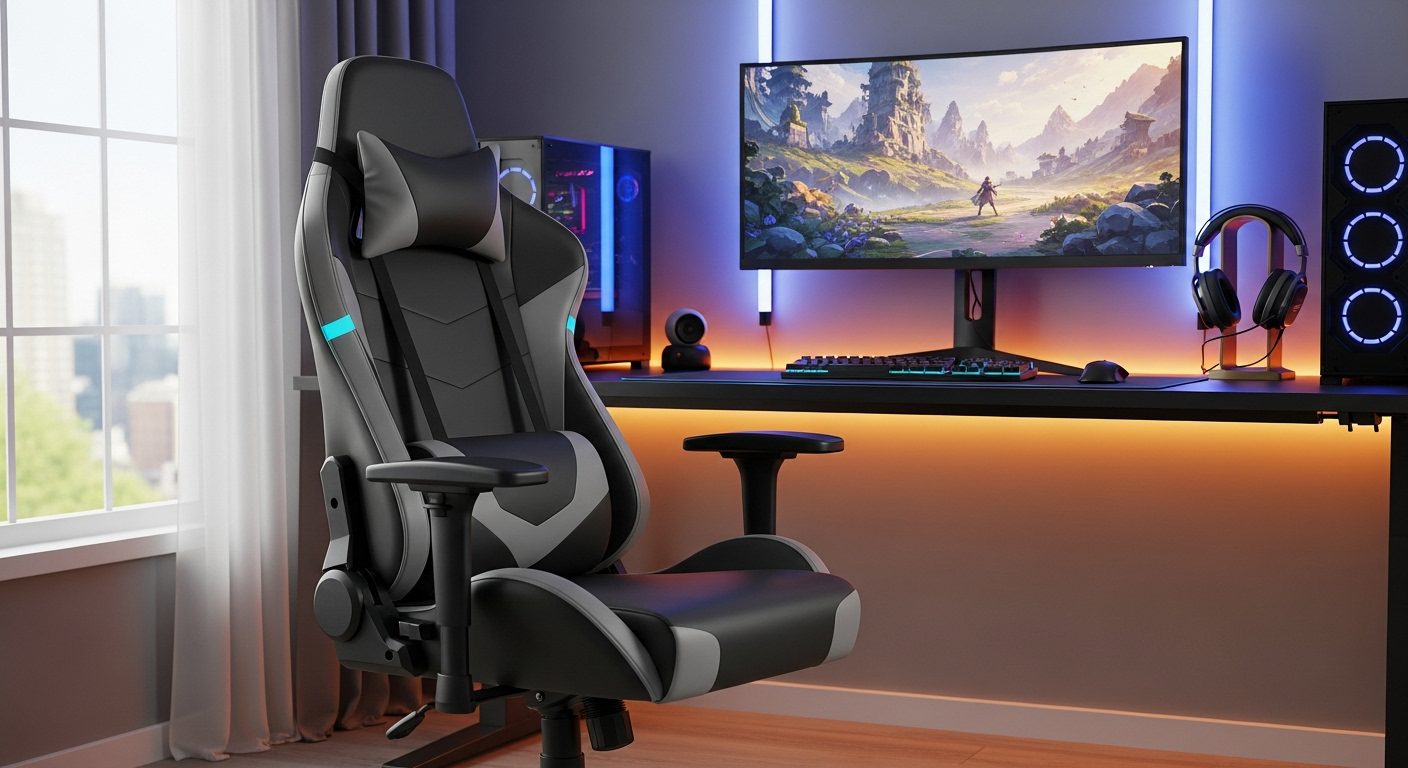
Setting up your gaming chair correctly can make the difference between hours of comfortable gaming and developing chronic back pain. After spending countless hours testing different chair configurations and researching ergonomic best practices, I’ve discovered that most gamers never properly adjust their chairs – they just sit down and start playing.
The reality is that an improperly adjusted gaming chair can lead to serious health issues over time. Poor posture during gaming sessions causes muscle strain, reduces blood circulation, and can even affect your gaming performance. When your body is uncomfortable, your reaction times slow down and your focus drifts.
In this comprehensive guide, I’ll walk you through every adjustment your gaming chair offers, explain the science behind proper ergonomics, and show you how to troubleshoot common problems. Whether you just unboxed a new chair or want to optimize your current setup, you’ll learn exactly how to achieve the perfect gaming position for your body type and gaming style.
Understanding Your Gaming Chair’s Anatomy
Before diving into adjustments, let’s identify the key components of your gaming chair. Not all chairs have every feature, but understanding what’s available helps you maximize your chair’s potential.
The seat height mechanism, typically a pneumatic cylinder under the seat, controls your chair’s vertical position. This lever or button is usually located on the right side beneath the seat. When activated, it releases compressed gas that allows the chair to move up or down based on your weight distribution.
Your backrest adjustment system consists of multiple components. The recline mechanism lets you tilt the entire backrest backward, while the tilt tension knob controls how much resistance you feel when leaning back. Some chairs also feature a backrest height adjustment that moves the entire back support up or down independently of the seat.
The lumbar support system varies significantly between chair models. Basic chairs might have a fixed lumbar pillow attached with straps, while premium models feature built-in adjustable lumbar mechanisms. These can move up and down, and sometimes in and out, to match your spine’s natural curve.
Armrests come in various configurations, from fixed to 4D adjustable. The adjustment dimensions include height (up/down), width (in/out), depth (forward/backward), and pivot (angle rotation). Each dimension serves a specific ergonomic purpose that we’ll explore in detail.
The headrest or neck pillow provides cervical spine support and prevents neck strain during extended sessions. Adjustable headrests can move up and down, and sometimes tilt forward or backward to match your neck’s natural position.
Understanding tilt mechanisms is crucial for proper adjustment. The standard tilt allows the seat and backrest to move together as one unit. The synchro-tilt mechanism moves the seat and backrest at different ratios, typically 2:1, maintaining better thigh support. The knee-tilt mechanism pivots from the front of the seat, keeping your feet flat on the floor while reclining.
Step-by-Step Gaming Chair Adjustment Guide
Step 1: Setting the Correct Seat Height
Start your adjustment process with seat height, as this forms the foundation for all other adjustments. Sit in your chair with your feet flat on the floor and your back against the backrest. Your knees should form a 90-degree angle, with your thighs parallel to the floor.
To find your ideal height, stand in front of your chair. The highest point of the seat cushion should align with just below your kneecap. This ensures proper leg support when seated. Sit down and check that your feet rest comfortably flat on the floor without pressure under your thighs.
If your desk is too high after adjusting seat height, don’t compensate by raising your chair beyond the proper position. Instead, consider using a footrest to maintain the correct angles. Your elbows should be at 90 degrees when your hands are on your keyboard or controller, with your shoulders relaxed.
Common mistakes include setting the chair too high, which creates pressure points under your thighs and restricts blood flow. Setting it too low forces your knees above your hips, increasing pressure on your lower back and causing slouching.
Step 2: Adjusting Lumbar Support
Proper lumbar support maintains your spine’s natural S-curve and prevents lower back strain. The lumbar support should fit into the small of your back, typically positioned between the bottom of your ribcage and the top of your pelvis.
Sit all the way back in your chair with your tailbone touching the backrest. If your chair has adjustable lumbar height, move it up or down until you feel gentle pressure in your lower back’s natural curve. The support shouldn’t push you forward or feel like it’s poking into your spine.
For chairs with depth adjustment, start with the lumbar support in its most recessed position. Gradually increase the depth until you feel comfortable support without being pushed away from the backrest. The goal is to maintain contact between your entire back and the chair while preserving your spine’s natural curve.
If your chair uses a lumbar pillow, position it at the same height as built-in support would be. Secure it tightly to prevent shifting during movement. Some gamers prefer slightly firmer or softer pillows based on personal preference and any existing back conditions.
Step 3: Backrest Angle and Recline Settings
Your backrest angle significantly impacts posture and comfort during different gaming activities. For active gaming that requires quick reactions and constant movement, set your backrest between 90 and 110 degrees. This upright position keeps you alert and enables rapid responses.
For casual gaming or cutscenes, a recline angle between 110 and 130 degrees reduces spinal pressure and promotes relaxation. Never game for extended periods at extreme recline angles, as this strains your neck and makes it difficult to maintain proper arm positioning.
Adjust the tilt tension to match your body weight and preferences. The chair should recline smoothly when you lean back but shouldn’t tip backward unexpectedly. Start with medium tension and adjust incrementally until you find the sweet spot where the chair supports you without requiring effort to recline.
Lock your preferred angle when you need stability, particularly during competitive gaming sessions. Many chairs offer multiple lock positions, allowing you to quickly switch between upright and reclined positions as needed.
Step 4: Armrest Positioning
Properly adjusted armrests prevent shoulder and neck tension while supporting your arms during gaming. Start by adjusting the height so your elbows rest at 90 degrees when your shoulders are relaxed. Your armrests should lightly support your forearms without lifting your shoulders or forcing them downward.
Width adjustment ensures your arms hang naturally at your sides. Position the armrests so they support your forearms without forcing your arms outward or squeezing them against your body. Your arms should feel relaxed and move freely when needed.
Depth adjustment aligns support with your natural arm position. When using a keyboard and mouse, your armrests should support your forearms while allowing your wrists to remain straight. For controller gaming, you might prefer the armrests slightly forward to support your arms in a more closed position.
The pivot angle becomes important for different gaming styles. PC gamers often angle armrests slightly outward to accommodate mouse movement, while console gamers might prefer parallel or slightly inward angles for controller support.
Step 5: Headrest and Neck Support
A properly positioned headrest prevents neck strain and supports your cervical spine. Adjust the height so the center of the headrest aligns with the base of your skull, not your neck. This position supports your head’s weight without pushing it forward.
The headrest should barely touch your head when sitting upright, providing support when you lean back without forcing your head into an unnatural position. If your headrest tilts, adjust it to match your head’s natural angle when looking at your screen.
For chairs with removable neck pillows, position them to fill the gap between your neck and the chair. The pillow should support your neck’s curve without pushing your head forward or creating pressure points.
Optimizing for Different Body Types
Adjustments for Tall Gamers (Over 6’2″)
Tall gamers face unique challenges with standard gaming chairs. Start by maximizing seat height while ensuring your feet remain flat on the floor. If the seat doesn’t go high enough, consider a chair riser or a model specifically designed for taller users.
Extend the backrest to its highest position if adjustable. The lumbar support should still align with your lower back, which might be higher than the standard position. You may need to add supplemental lumbar support if the built-in system doesn’t reach high enough.
Set armrests to their maximum height and possibly their furthest forward position to accommodate longer arms. Ensure your shoulders remain relaxed even at maximum armrest height. If armrests don’t extend high enough, consider aftermarket extensions or arm pads.
Pay special attention to seat depth. Your chair should support your thighs without creating pressure behind your knees. Look for chairs with seat depth adjustment or use a lumbar pillow to effectively shorten the seat if needed.
Adjustments for Shorter Gamers (Under 5’6″)
Shorter gamers often struggle with chairs designed for average heights. Lower the seat until your feet rest flat on the floor. If this makes your desk too high, use a footrest rather than compromising your seating position.
Position the lumbar support lower than standard recommendations, as your lower back curve sits lower on the chair. Some shorter users benefit from additional lumbar pillows to bring the support forward and fill the gap created by the chair’s depth.
Adjust armrests to their lowest setting while maintaining the 90-degree elbow angle. If armrests don’t go low enough, consider removing them temporarily or using cushions on your seat to raise your position.
Seat depth becomes critical for shorter users. If your chair has seat depth adjustment, reduce it until you have 2-3 inches between the seat edge and the back of your knees. Otherwise, use a backrest cushion to bring yourself forward while maintaining lumbar support.
Adjustments for Different Gaming Styles
Competitive FPS gamers need an alert, forward-leaning position. Set your backrest more upright (90-100 degrees) and position your seat height so your eyes align with the top third of your monitor. Keep armrests lower to allow free mouse movement across a large mousepad.
RPG and strategy gamers who play longer sessions benefit from a slightly reclined position (100-110 degrees) with full armrest support. This reduces fatigue during extended gameplay while maintaining good visibility and control access.
Racing sim enthusiasts should recline further (110-125 degrees) to simulate a driving position. Lower the seat height and extend armrests forward to comfortably reach your wheel and pedals. Ensure your lumbar support remains engaged even in this reclined position.
Console gamers typically sit further from their screens and benefit from a relaxed position. Set your backrest to 105-115 degrees and position armrests to support your arms while holding a controller at comfortable chest height.
Troubleshooting Common Gaming Chair Problems
Chair Keeps Sinking Down
A sinking chair usually indicates a failing gas cylinder. First, check if the height adjustment lever is stuck in the activated position. Clean around the lever mechanism and ensure it fully releases when not in use.
If the cylinder is indeed failing, you have several options. A temporary fix involves using a hose clamp around the cylinder’s exposed portion to prevent it from compressing. For a permanent solution, replace the gas cylinder entirely – most are universal and cost between $20-40.
Before replacing parts, verify your weight doesn’t exceed the chair’s capacity. Overloading accelerates cylinder wear and can cause premature failure. Most gaming chairs support 250-350 pounds, but check your specific model’s specifications.
Squeaking and Creaking Noises
Annoying squeaks typically come from metal-on-metal contact or loose components. Start by tightening all visible bolts and screws, particularly where the seat meets the base and where armrests attach.
Apply silicone spray lubricant to all moving parts, including the tilt mechanism, armrest joints, and gas cylinder housing. Avoid WD-40, as it attracts dust and provides only temporary relief. Silicone spray lasts longer and doesn’t damage plastic or rubber components.
Check the wheels for debris or hair wrapped around the axles. Remove each wheel, clean the socket, and apply lubricant to the stem before reinserting. This often eliminates rolling squeaks that occur during movement.
Backrest Won’t Stay in Position
If your backrest won’t lock or constantly tilts backward, first check the tilt lock mechanism. Ensure you’re engaging it properly – some chairs require lifting the lever while others need pushing or pulling.
Adjust the tilt tension knob, usually located under the seat. Turn it clockwise to increase resistance. If maximum tension still doesn’t hold your weight, the spring mechanism might be worn and need replacement.
For chairs with separate backrest angle adjustment, check if the adjustment mechanism is stripped. This often happens from forcing adjustments without properly releasing the lock. Professional repair or replacement might be necessary for stripped mechanisms.
Uncomfortable Despite Adjustments
Persistent discomfort after proper adjustment might indicate the chair doesn’t suit your body type or has design limitations. Document your pain points – where exactly do you feel discomfort and during what activities?
Consider adding ergonomic accessories. Memory foam cushions can improve seat comfort, while lumbar rolls provide additional back support. Armrest pads add cushioning for bony elbows, and seat cushions can effectively adjust seat depth.
Evaluate your overall setup beyond just the chair. Monitor height, keyboard position, and desk height all affect comfort. Sometimes the chair is properly adjusted, but other elements create strain that manifests as chair discomfort.
Maintaining Proper Gaming Posture
The 90-90-90 Rule
The fundamental principle of ergonomic seating involves maintaining three 90-degree angles: ankles, knees, and elbows. Your feet should be flat on the floor with ankles at 90 degrees. Your knees should bend at 90 degrees with thighs parallel to the floor. Your elbows should rest at 90 degrees when using your keyboard or controller.
This rule provides a starting point, but slight variations (85-95 degrees) are acceptable based on comfort. The key is avoiding extreme angles that stress joints or restrict circulation. Regular position checks help maintain these angles throughout gaming sessions.
Screen Distance and Height
Position your monitor an arm’s length away (20-26 inches) with the top of the screen at or slightly below eye level. This prevents neck strain from looking up or down for extended periods. Your natural line of sight should fall about 2 inches below the top of your screen.
For multi-monitor setups, position your primary screen directly in front and secondary screens within 35 degrees of center. This minimizes neck rotation and maintains comfortable viewing angles across all displays.
Movement and Breaks
Static positions, even ergonomically correct ones, cause fatigue and reduce circulation. Implement micro-movements every 10-15 minutes – shift your weight, roll your shoulders, or adjust your backrest angle slightly.
Take structured breaks using the 20-20-20 rule: every 20 minutes, look at something 20 feet away for 20 seconds. Stand and walk for 5 minutes every hour. These breaks prevent muscle stiffness and reduce eye strain from prolonged screen focus.
During longer gaming sessions, perform simple stretches targeting common problem areas. Neck rolls, shoulder shrugs, wrist flexions, and standing back extensions counteract gaming posture stress. Set reminders if you tend to lose track of time while gaming.
Advanced Adjustments and Optimizations
Dynamic Sitting Techniques
Dynamic sitting involves intentionally changing positions throughout your gaming session. Create two or three preset positions: an upright active position for competitive play, a slightly reclined position for casual gaming, and a recovery position for breaks.
Use your chair’s tilt function actively rather than locking it in one position. The gentle rocking motion promotes blood flow and prevents muscle stiffness. Adjust tilt tension so you can rock comfortably without effort.
Experiment with seat pan tilt if your chair offers this feature. A slight forward tilt (2-4 degrees) opens your hip angle and can reduce lower back pressure during forward-leaning gameplay. A neutral or slight backward tilt works better for relaxed gaming positions.
Temperature and Material Considerations
Gaming generates body heat, and chair materials significantly affect comfort. Leather and PU leather retain more heat but are easier to clean. Fabric breathes better but may retain odors and stains. Consider your room temperature and personal preferences when adjusting for long sessions.
Add cooling accessories if overheating is an issue. Mesh lumbar supports increase airflow, while cooling gel cushions provide temperature regulation. Some gamers use small fans directed at their chair during summer months.
In colder environments, the opposite applies. Add cushions or throws for warmth, but ensure they don’t compromise your ergonomic adjustments. Heated lumbar supports can provide comfort while maintaining proper posture support.
Customizing for Accessibility Needs
Gamers with disabilities may need specialized adjustments beyond standard recommendations. For limited mobility, prioritize easy-reach adjustments and consider chairs with memory positions that return to preset configurations.
Those with chronic pain conditions might benefit from additional cushioning or support in specific areas. Work with healthcare providers to identify optimal positions and necessary modifications. Many gaming chairs can be modified with aftermarket accessories to meet specific needs.
Consider alternative input positions if standard setups cause strain. Lap desks, monitor arms, and adjustable keyboard trays can bring controls to comfortable positions regardless of chair limitations.
Long-Term Chair Maintenance for Optimal Adjustment
Regular Inspection and Cleaning
Monthly inspections prevent small issues from becoming major problems. Check all bolts and screws for looseness, especially after assembly or moving the chair. Tighten connections to maintain stability and prevent premature wear.
Clean adjustment mechanisms regularly to ensure smooth operation. Dust and debris can clog gas cylinders, jam tilt mechanisms, and interfere with armrest adjustments. Use compressed air to clear mechanisms and wipe down with appropriate cleaners for your chair’s material.
Inspect wheels and casters for hair, thread, and debris buildup. Remove wheels quarterly for deep cleaning. This maintains smooth rolling and prevents floor damage from dragging stuck wheels.
Component Replacement Schedule
Gas cylinders typically last 3-5 years with regular use. Watch for gradual height loss or sudden drops as warning signs. Replace cylinders preemptively if you notice any instability or inconsistent operation.
Armrest pads and cushions wear faster than structural components. Replace them when padding compresses permanently or covering materials tear. Many manufacturers sell replacement pads that restore original comfort.
Wheels should be replaced when they no longer roll smoothly or show visible damage. Upgrade to rollerblade-style wheels for smoother, quieter operation on hard floors. Ensure replacement wheels match your chair’s stem size and weight capacity.
Preserving Adjustment Mechanisms
Avoid forcing adjustments beyond their designed range. If a lever or knob feels stuck, investigate the cause rather than applying excessive force. Forced adjustments often strip gears or break plastic components.
Lubricate moving parts biannually with appropriate products. Silicone spray works for most mechanisms, while white lithium grease better serves high-pressure areas like tilt mechanisms. Never over-lubricate, as excess attracts dirt and creates messy buildup.
Store your chair properly when not in use for extended periods. Keep it in a climate-controlled environment to prevent material degradation. Cover it to prevent dust accumulation in mechanisms, and occasionally adjust all components to prevent seizing.
Creating Your Perfect Gaming Environment
Desk and Chair Harmony
Your chair adjustments must work in harmony with your desk setup. Measure your desk height and ensure your chair’s adjustment range accommodates it. Standard desks are 29-30 inches high, but gaming desks vary significantly.
Consider desk depth when positioning your chair. You need adequate legroom while maintaining proper distance from your monitor and peripherals. Shallow desks might require you to sit closer than ideal, affecting your chair’s backrest and armrest positioning.
Cable management affects chair movement and adjustment. Route cables to avoid tangling in wheels or limiting chair movement. Use cable trays or clips to keep wires organized and prevent them from interfering with adjustment mechanisms.
Lighting and Visual Ergonomics
Proper lighting reduces eye strain and affects your seating position. Position light sources to avoid glare on your screen, which causes you to lean forward or twist to see clearly. This compromises your carefully adjusted chair position.
Ambient backlighting behind your monitor reduces contrast strain and helps maintain proper viewing distance. When you’re not squinting or leaning forward to see, you’re more likely to maintain correct posture in your adjusted chair.
Consider your chair’s position relative to windows. Direct sunlight can cause overheating and glare issues. Position your setup perpendicular to windows when possible, or use blinds to control natural light throughout the day.
Audio Setup Integration
Headphone cable length affects your seating position and adjustment freedom. Ensure cables are long enough to allow full chair movement without pulling. Wireless headphones eliminate this concern but require charging management.
Speaker placement influences your ideal chair position. Properly positioned speakers at ear level when seated provide optimal audio without requiring you to adjust your posture to hear clearly.
Consider a headphone stand or hanger attached to your chair or desk. This keeps headphones accessible without cluttering your space or requiring reaching that disrupts your ergonomic position.
Special Considerations for Different Gaming Scenarios
Streaming and Content Creation
Streamers need consistent positioning for camera framing. Mark your ideal chair position with tape on the floor, and note your adjustment settings for quick return to the streaming position after breaks.
Microphone positioning affects chair adjustment, particularly backrest angle. Boom arms provide flexibility, but ensure your adjusted position keeps you at the optimal distance from your microphone without straining.
Green screen setups require specific chair positioning to stay within the screen area. Adjust your chair to maintain comfort while remaining properly framed. Consider a chair with minimal visible backing if it appears in your stream.
VR Gaming Adjustments
VR gaming involves unique chair considerations. For seated VR experiences, lower armrests to avoid controller interference. Ensure your chair spins freely for 360-degree games without cable tangling.
Quick-release adjustments become important for switching between VR and traditional gaming. Memory positions or clearly marked adjustment points help transition between setups efficiently.
Safety considerations include ensuring your chair is stable and locked when standing up quickly during room-scale VR transitions. Set the height to make standing and sitting easy while wearing a headset.
Tournament and LAN Party Settings
Tournament environments often provide unfamiliar chairs requiring quick adjustment. Learn to identify key adjustments quickly and carry portable accessories like lumbar rolls or seat cushions for consistency.
Document your ideal settings with measurements and photos. This reference helps recreate your optimal position on different chairs. Practice adjusting various chair types to build familiarity with different mechanisms.
Time management becomes crucial in tournament settings. Arrive early to properly adjust your chair before warm-ups. Don’t sacrifice ergonomics for time – poor positioning affects performance more than shortened warm-up time.
Frequently Asked Questions
How often should I readjust my gaming chair?
Perform minor adjustments daily based on comfort and activity. Conduct comprehensive readjustment monthly or whenever you experience persistent discomfort. Your body changes over time, and chairs settle with use, making periodic adjustment necessary. Major adjustments might be needed seasonally as clothing thickness changes or after any significant weight change.
Why does my gaming chair feel different each day?
Daily variations in comfort stem from multiple factors. Your body’s flexibility and inflammation levels fluctuate daily. Temperature affects material firmness, especially in memory foam components. Clothing thickness changes your effective seat height and depth. Previous day’s activities affect your muscle tension and posture needs. These variations are normal and might require minor daily adjustments.
Should I lock my chair’s tilt or leave it free?
This depends on your gaming activity and personal preference. Lock the tilt for competitive gaming requiring consistent positioning and quick reactions. Leave it free for casual gaming to promote movement and reduce static stress. Many gamers prefer a middle ground – using tilt resistance adjustment to allow controlled movement without full locking. Experiment with both to find what works for your gaming style.
Can proper chair adjustment really improve gaming performance?
Absolutely. Proper ergonomics directly impacts reaction time, endurance, and focus. When you’re comfortable, you maintain better concentration and react faster. Poor positioning causes fatigue that progressively worsens performance. Professional esports players treat chair adjustment as seriously as their equipment settings because comfort translates to consistency during long sessions.
What’s the biggest adjustment mistake gamers make?
The most common mistake is setting the chair too high to reach a desk that’s also too high. This creates a cascade of problems: feet don’t touch the floor, thighs compress against the seat, shoulders elevate to reach the keyboard, and neck cranes to see the monitor. Always start with proper seat height based on your body, then adjust your desk or use accessories to accommodate.
How do I know if I need a different chair versus better adjustment?
If you can’t achieve basic ergonomic angles despite full adjustment range, you might need a different chair. Signs include: maxed-out adjustments that still don’t fit, persistent pain despite proper adjustment, adjustment mechanisms that don’t hold position, or a seat that’s fundamentally too large or small for your body. Try adding accessories first, but recognize when a chair simply doesn’t suit your body type.
Should armrests always touch my arms while gaming?
Not necessarily. Armrests should support your arms when needed but not restrict movement. For mouse-intensive gaming, you might want the mouse-side armrest lower or removed entirely. For controller gaming, constant support reduces shoulder tension. The key is having support available when resting while allowing free movement during active play.
Is it bad to recline my gaming chair all the way back?
Extreme recline isn’t inherently bad for short periods, but it’s not ideal for active gaming. Full recline strains your neck to see the screen and makes peripheral use difficult. Reserve extreme recline for breaks or watching content. For gaming, stay within 90-130 degrees to maintain proper ergonomics and control access.
Why do my legs fall asleep in my gaming chair?
Leg numbness usually indicates excessive pressure under your thighs. Your seat might be too high, cutting off circulation at the edge. The seat pan might be too deep, creating pressure behind your knees. Or you might be sitting too far forward, concentrating weight on a small area. Adjust seat height and depth, and ensure you’re sitting fully back in the chair with proper lumbar support.
How tight should the lumbar support feel?
Lumbar support should feel like a gentle, constant presence rather than aggressive pressure. You should feel supported but not pushed forward out of the chair. If you notice the support only when focusing on it, the adjustment is likely correct. Pain, numbness, or feeling forced into an unnatural position indicates too much pressure.
Conclusion
Properly adjusting your gaming chair is an investment in your health, comfort, and gaming performance. The time spent finding your perfect configuration pays dividends in reduced pain, increased endurance, and better focus during those crucial gaming moments.
Remember that chair adjustment isn’t a one-time event but an ongoing process. Your needs change with different games, your body changes over time, and your chair components wear with use. Regular attention to your setup ensures you maintain optimal comfort and performance.
Start with the fundamentals – proper seat height, lumbar support, and the 90-90-90 rule. From there, fine-tune each adjustment based on your body type, gaming style, and personal preferences. Don’t be afraid to experiment with different configurations until you find what works best for you.
Most importantly, listen to your body. Discomfort is a signal that something needs adjustment. Address issues promptly rather than gaming through pain, which only leads to larger problems. With proper adjustment and regular maintenance, your gaming chair becomes a tool for better gaming rather than a source of strain.
Take the time today to go through each adjustment systematically. Document your ideal settings, maintain your chair properly, and make adjustments part of your gaming routine. Your future self will thank you for the effort you put into creating a comfortable, sustainable gaming setup that supports both your passion for gaming and your long-term health.