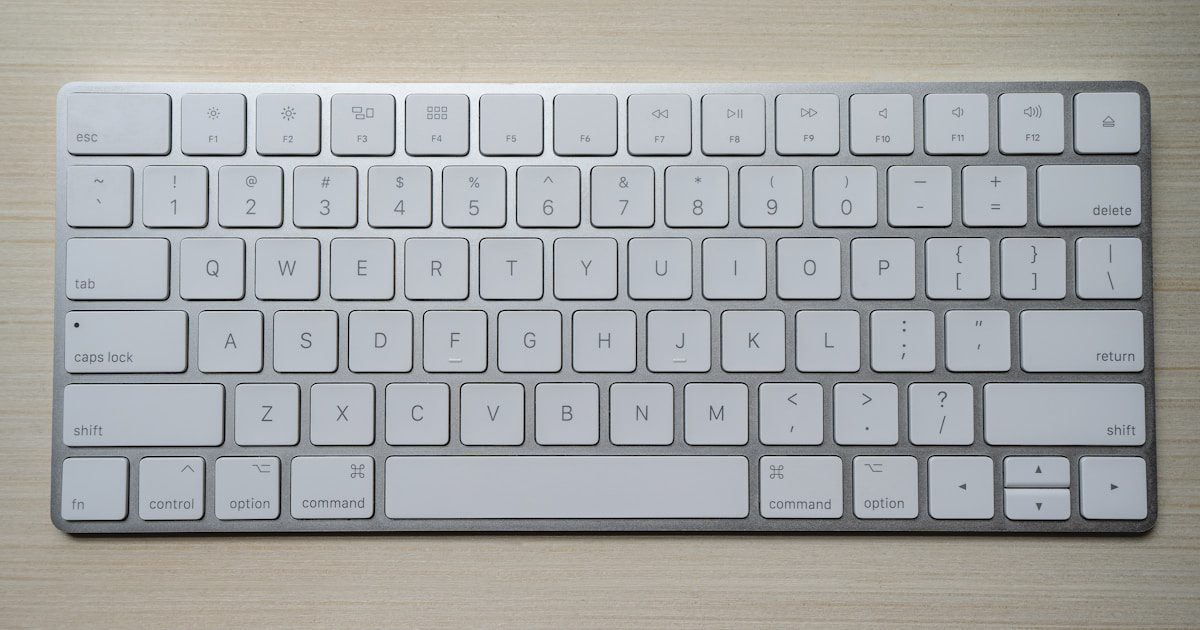
Your keyboard sees constant use throughout the day, accumulating dust, crumbs, oils from your fingers, and potentially harmful bacteria. I’ve cleaned hundreds of keyboards over the years, from sticky gaming keyboards after marathon sessions to office keyboards that haven’t been touched in years. The difference a proper cleaning makes isn’t just visual – it can actually extend your keyboard’s lifespan and improve typing accuracy.
Studies show that keyboards can harbor more bacteria than toilet seats, with some containing up to 7,500 bacteria per swab. Regular cleaning isn’t just about aesthetics; it’s about maintaining a hygienic workspace and ensuring your equipment functions properly. Stuck keys, unresponsive switches, and that gritty feeling when typing are all signs your keyboard needs attention.
This guide walks you through everything from quick daily maintenance to complete deep cleaning procedures. We’ll cover manufacturer-approved methods, safety precautions to protect your warranty, and specific techniques for different keyboard types. Whether you’re dealing with a high-end mechanical keyboard or a laptop’s built-in keyboard, you’ll find the right approach here.
What You’ll Need: Essential Cleaning Supplies
Before starting any keyboard cleaning project, gathering the right supplies makes the process smoother and safer. I keep a dedicated electronics cleaning kit that costs less than $30 total and lasts for months of regular maintenance.
Basic Cleaning Supplies
For routine cleaning, you’ll need compressed air (canned or electric duster), microfiber cloths (at least 2-3), isopropyl alcohol (70% or higher concentration), cotton swabs or Q-tips, and a soft-bristled brush like an old toothbrush. These basic items handle 90% of keyboard cleaning tasks effectively.
The compressed air removes loose debris from between keys without physical contact. Microfiber cloths won’t scratch surfaces or leave lint behind like paper towels might. Isopropyl alcohol evaporates quickly, minimizing moisture exposure to electronics while effectively killing germs and dissolving oils.
Deep Cleaning Tools
For thorough cleaning sessions, additional tools include a keycap puller (wire or plastic type), small bowl for soaking keycaps, mild dish soap, camera or smartphone for documenting key layout, and tweezers for removing stubborn debris. A plastic prying tool helps with laptop keyboards where keys shouldn’t be removed.
Alternative supplies work in a pinch: makeup brushes substitute for electronics brushes, distilled water mixed with white vinegar creates a gentler cleaning solution, and dental floss helps dislodge debris between keys. Cleaning gel or slime products offer another option, though they leave residue if used incorrectly.
Safety First: Important Precautions
The most critical safety rule: always power down and disconnect your keyboard before cleaning. For wired keyboards, unplug the USB or PS/2 cable completely. Wireless keyboards need batteries removed. Laptops require complete shutdown, not just sleep mode, with the power adapter disconnected and battery removed if possible.
Liquid damage remains the biggest threat during keyboard cleaning. Even small amounts of moisture can cause permanent damage to the circuitry beneath the keys. Never spray liquids directly onto the keyboard. Instead, apply cleaning solutions to your cloth first, then wring out excess moisture until the cloth feels barely damp.
According to Apple’s official support documentation, using 70% isopropyl alcohol wipes is safe for their keyboards, but they specifically warn against bleach, hydrogen peroxide, and aerosol sprays. HP and other manufacturers echo similar guidelines, emphasizing that excessive moisture voids warranties.
Static electricity poses another risk, particularly for mechanical keyboards with exposed PCBs. Ground yourself by touching a metal part of your computer case before handling internal components. Work on a non-carpeted surface when possible, and avoid cleaning during low humidity conditions when static buildup increases.
Basic Keyboard Cleaning: Step-by-Step
This basic cleaning method works for all keyboard types and takes about 10-15 minutes. I perform this routine weekly on my primary keyboard and monthly on less-used ones.
Step 1: Initial Debris Removal
After powering down and disconnecting your keyboard, turn it upside down over a trash can or sink. Gently tap the back while rotating it at different angles. You’ll be surprised how much debris falls out – crumbs, dust, hair, and mysterious particles accumulate even with careful use.
For laptops, open the screen to about 90 degrees and carefully tilt the entire unit. Support the screen while tapping gently around the keyboard area. Don’t shake vigorously as this could damage internal components or the screen hinges.
Step 2: Compressed Air Technique
Hold the compressed air can upright to prevent liquid propellant from spraying out. Starting from one corner, spray in short bursts at a 45-degree angle, working systematically across rows. The angled approach pushes debris out rather than deeper into the mechanism.
Keep the straw attachment about 1-2 inches from the keys. Closer risks moisture from condensation; farther reduces effectiveness. For stubborn particles, try spraying from multiple angles. Focus extra attention on frequently used keys like spacebar and Enter where debris accumulates most.
Step 3: Surface Cleaning
Dampen your microfiber cloth with isopropyl alcohol – it should feel barely moist, not wet. Wipe each keycap individually using gentle circular motions. This removes finger oils, sticky residue, and surface bacteria that compressed air can’t address.
For the areas between keys, wrap the cloth around a butter knife or similar flat tool to reach tight spaces. Cotton swabs dipped in alcohol work well for corners and edges. Replace swabs frequently as they collect grime quickly.
Step 4: Disinfection Process
After cleaning visible dirt, a second pass with fresh alcohol solution ensures proper disinfection. Studies show 70% isopropyl alcohol needs 30 seconds of contact time to kill most bacteria and viruses effectively. Let the keyboard air dry completely before reconnecting – usually 5-10 minutes depending on humidity.
Deep Cleaning: When and How to Remove Keys
Deep cleaning becomes necessary when basic methods can’t remove stubborn grime, keys feel sticky or crunchy when pressed, or you’ve spilled something beyond surface level. This process takes 1-2 hours but can restore even neglected keyboards to like-new condition.
Documenting Your Layout
Before removing any keys, take multiple photos from different angles. Even experienced users forget specific key positions, especially for function keys and special characters. I’ve learned this lesson the hard way after spending 30 minutes trying to remember where the Print Screen key belonged.
Create a reference by laying removed keys on a flat surface in their exact layout pattern. Some people print a keyboard diagram, but phone photos work perfectly and capture any unique keys your model might have.
Safe Keycap Removal
A proper keycap puller prevents damage to both keys and switches. Wire pullers distribute force evenly and work on all keycap sizes. Position the wires under opposite corners of the keycap, then pull straight up with steady pressure. You’ll feel a pop as the keycap releases from the switch stem.
Start with letter keys as they’re usually uniform and easier to remove. Leave larger keys like spacebar, shift, and enter for last – they often have stabilizer bars requiring special attention. If a key resists, check for additional mounting points rather than forcing it.
For laptops, most modern models have keys that shouldn’t be removed as they use delicate scissor or butterfly mechanisms. Check your manufacturer’s documentation first. When in doubt, stick to surface cleaning for laptop keyboards.
Cleaning Individual Components
Soak removed keycaps in warm water with a drop of dish soap for 30 minutes. This loosens accumulated grime without damaging the plastic. While they soak, clean the exposed keyboard base using compressed air and alcohol-dampened swabs to remove debris that was hidden under the keys.
Scrub each keycap with a soft brush, paying attention to the underside where grime concentrates. Rinse thoroughly with clean water and lay them letter-side down on a towel. Pat dry, then let them air dry completely – any residual moisture can cause problems when reassembled.
The keyboard base needs gentle treatment as you’re working near exposed electronics. Use minimal liquid and work in small sections. A dry brush helps dislodge stubborn particles without moisture risk. Some enthusiasts use electric air dusters or even low-pressure vacuums with brush attachments.
Reassembly Tips
Ensure keycaps are completely dry before reattachment – even slight moisture can cause switch corrosion. Line up each keycap with its switch stem and press down firmly until you hear a click. The keycap should sit level with its neighbors and move freely when pressed.
Larger keys with stabilizer bars require careful alignment. Hook the stabilizer bar into its mounting points first, then press the keycap onto the switch stem. These keys should feel stable across their entire surface without wobbling or binding.
Cleaning Different Keyboard Types
Each keyboard type has specific considerations based on its construction and intended use. Understanding these differences prevents damage and ensures thorough cleaning.
Mechanical Keyboards
Mechanical keyboards tolerate deep cleaning well due to their robust construction. Their individual switches make keycap removal straightforward, and most use standard layouts simplifying reassembly. The switches themselves benefit from occasional compressed air to remove dust that affects actuation.
Premium mechanical keyboards often feature removable cables and cases that separate for thorough cleaning. Some enthusiasts disassemble completely for ultrasonic cleaning of keycaps and even lubrication of switches, though this level of maintenance isn’t necessary for most users.
Gaming-focused mechanical keyboards accumulate unique debris patterns. Energy drink residue, snack crumbs, and extended use create stubborn buildup. CORSAIR’s official cleaning guide recommends monthly deep cleaning for heavy gaming use, with weekly surface cleaning to prevent accumulation.
Laptop Keyboards
Laptop keyboards require extra caution due to their integrated design and delicate mechanisms. Most use scissor switches or Apple’s butterfly mechanism, which can break if keys are removed incorrectly. The keyboard sits directly above sensitive components, making liquid damage particularly risky.
Focus on surface cleaning using minimal moisture. Compressed air at lower pressure prevents forcing debris deeper into the laptop chassis. Angle the laptop to let debris fall out rather than in. Some users success with sticky notes’ adhesive edges to pull out debris from under keys.
Professional laptop cleaning often involves partial disassembly to access the keyboard from below. Unless you’re comfortable with laptop repair, leave this to technicians. The cost of professional cleaning beats replacing an entire laptop keyboard assembly.
Membrane Keyboards
Budget-friendly membrane keyboards use a single rubber or silicone layer under all keys. They’re generally spill-resistant but harder to deep clean since keycaps often aren’t designed for removal. The membrane can tear if handled roughly, essentially destroying the keyboard.
Surface cleaning works best for membrane keyboards. If liquid spills occur, immediately disconnect and invert the keyboard. The sealed design sometimes allows careful rinsing with distilled water, followed by thorough drying for 48-72 hours before use.
Wireless and Bluetooth Keyboards
Wireless keyboards add battery compartment cleaning to the maintenance routine. Corrosion from old batteries creates serious problems, so check battery contacts during each cleaning session. Clean any white or green buildup with vinegar on a cotton swab, then neutralize with isopropyl alcohol.
Many wireless keyboards aren’t designed for keycap removal, similar to membrane models. Their compact design and integrated batteries make liquid exposure particularly dangerous. Stick to dry cleaning methods when possible, using barely damp cloths only when necessary.
Maintenance Schedule and Prevention
Establishing a regular cleaning routine prevents major buildup and extends keyboard lifespan. I follow a simple schedule that takes minimal time but makes a significant difference in keyboard hygiene and performance.
Daily Prevention Tips
Simple habits prevent most keyboard contamination. Wash hands before extended typing sessions, especially after eating. Keep beverages at least 12 inches from your keyboard – spills happen to everyone eventually. A keyboard cover for dusty environments or when not in use adds protection without interfering with typing.
Weekly maintenance takes five minutes: turn the keyboard upside down and tap gently, use compressed air on problem areas, and wipe surfaces with a dry microfiber cloth. This routine prevents accumulation that requires deep cleaning later.
Monthly Deep Maintenance
Monthly sessions involve the complete basic cleaning process described earlier. Mark your calendar or set reminders – consistency matters more than perfection. Increase frequency if you eat at your desk, have pets, or work in dusty conditions.
Signs your keyboard needs immediate attention include keys sticking or not registering, visible debris between keys, discoloration on frequently used keys, unusual odors, or typed characters appearing multiple times from single presses. Don’t wait for multiple symptoms; address issues promptly to prevent permanent damage.
Frequently Asked Questions
Can I use alcohol to clean my keyboard?
Yes, isopropyl alcohol at 70% concentration or higher is safe and recommended by most manufacturers. It evaporates quickly, kills germs effectively, and won’t damage plastic or electronics when used properly. Apply it to a cloth first, never directly to the keyboard, and ensure the cloth is damp, not soaking wet.
How often should I clean my keyboard?
Basic surface cleaning should happen weekly, with compressed air and wiping taking just five minutes. Deep cleaning depends on usage – monthly for heavy users who eat at their desk, quarterly for standard office use, or biannually for light home users. Increase frequency if you notice performance issues or visible buildup.
Is it safe to remove keyboard keys?
For mechanical keyboards, yes – they’re designed for keycap removal and customization. Use a proper keycap puller and gentle upward force. For membrane keyboards and laptops, generally no – these keys often break if removed. Always check your specific model’s documentation first, as some laptops do support key removal for cleaning.
What if liquid spills on my keyboard?
Act immediately: disconnect power, flip the keyboard upside down, and gently shake out excess liquid. For water spills, let it dry completely for 24-48 hours before testing. Sugary drinks require disassembly and cleaning to prevent sticky residue. If the keyboard doesn’t work after drying, professional repair or replacement might be necessary.
Can I use cleaning gel or slime?
Cleaning gels work for surface debris and dust but have limitations. They can leave residue if pressed too hard or left too long, and they don’t disinfect or remove oils. Use them as supplements to regular cleaning, not replacements. Avoid them entirely on laptop keyboards where residue could seep into internal components.
How do I clean sticky keys?
For mechanical keyboards, remove the affected keycaps and clean both the keycap and switch with isopropyl alcohol. Cotton swabs help reach tight spaces. For keyboards where key removal isn’t possible, work alcohol around the key edges with a swab, press the key repeatedly while cleaning, and use compressed air to dry.
Should I use a vacuum cleaner?
Standard vacuums create static electricity that can damage electronic components. If you must vacuum, use a battery-powered handheld model with an anti-static brush attachment. Keep the suction low and maintain distance from the keyboard surface. Compressed air remains the safer, more effective option for most users.
Final Thoughts
Regular keyboard cleaning is one of those simple maintenance tasks that pays dividends in equipment longevity and personal hygiene. The 15 minutes spent on weekly maintenance saves hours of deep cleaning later and potentially extends your keyboard’s life by years.
Start with basic cleaning this week – you don’t need every tool mentioned to begin. Even just compressed air and a microfiber cloth make a noticeable difference. As you develop the habit, you’ll naturally identify what your specific setup needs for optimal maintenance.
Remember that every keyboard is different. What works for my mechanical gaming keyboard might not suit your laptop or office membrane keyboard. Use this guide as a foundation, but always defer to manufacturer guidelines for your specific model. When in doubt, err on the side of caution – it’s better to clean conservatively than risk damage from aggressive methods.