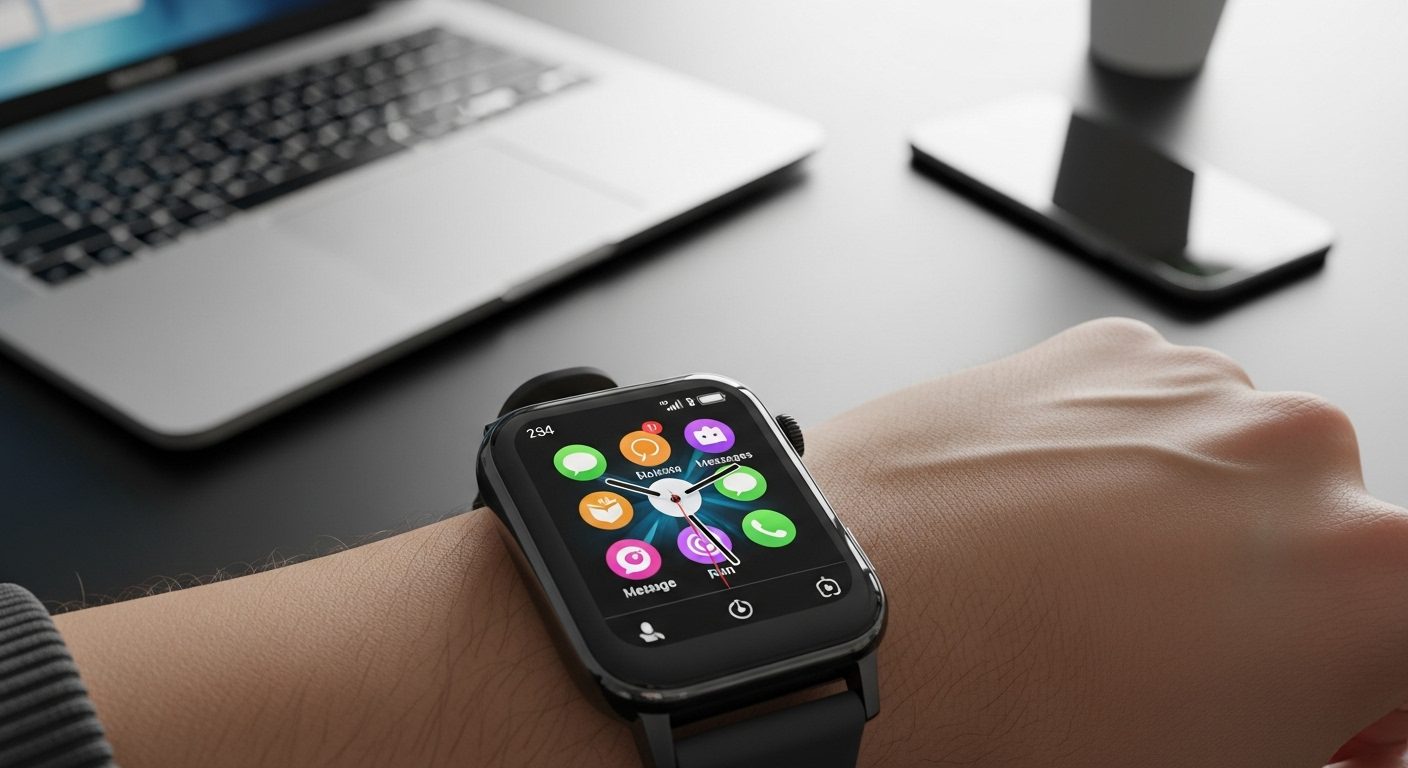
Getting started with your first smartwatch can feel overwhelming. With so many features, buttons, and settings, you might wonder where to begin. I’ve been using smartwatches for years, and I remember the confusion of that first day. Whether you just unboxed an Apple Watch, Samsung Galaxy Watch, Fitbit, or any other smartwatch, this guide will walk you through everything from initial setup to advanced features.
We’ll cover the essentials that work across all major smartwatch brands, helping you master your device without getting lost in technical jargon. By the end of this guide, you’ll know how to navigate your smartwatch confidently, customize it to your needs, track your health metrics, and troubleshoot common issues.
Getting Started with Your Smartwatch
Unboxing and Initial Inspection
When you first open your smartwatch box, you’ll typically find the watch itself, a charging cable or dock, and a quick start guide. Some models include additional watch bands or adapters. Before doing anything else, inspect your device for any visible damage or missing components.
Check that your watch band is securely attached. Most smartwatches use quick-release pins or a sliding mechanism. Give it a gentle tug to ensure it won’t come loose during wear. If your watch has physical buttons, press each one briefly to confirm they click properly.
Charging Your Smartwatch
Your smartwatch likely arrived with a partial charge, but I recommend charging it fully before the initial setup. Connect the charging cable to a power adapter (usually not included) or USB port. Most smartwatches use magnetic charging, where the charger snaps into place on the back of the watch.
Charging indicators vary by model. You might see a lightning bolt icon, a percentage display, or a colored LED light. A full charge typically takes 1-3 hours depending on your model. While waiting, download your smartwatch’s companion app on your smartphone – you’ll need this for setup.
Initial Setup and Pairing
Power on your smartwatch by pressing and holding the main button (usually the crown or side button) for 3-5 seconds. You’ll see the manufacturer’s logo followed by a welcome screen. Select your language if prompted.
Next, you’ll pair the watch with your smartphone. Open the companion app on your phone and follow these steps:
First, ensure Bluetooth is enabled on your phone. The app will search for nearby devices. When your watch appears, tap to select it. You might need to confirm a pairing code that appears on both devices. Accept any permission requests for notifications, contacts, and location access – you can adjust these later.
The initial sync process transfers settings and apps to your watch. This can take 5-15 minutes depending on your connection speed and the amount of data. Keep both devices close together and plugged in if possible.
Understanding Basic Navigation
The Watch Face and Home Screen
Your watch face is the main screen you’ll see when you raise your wrist or tap the display. It shows the time and can display additional information called complications – small widgets showing weather, activity rings, calendar events, or other data.
To wake your smartwatch, you can raise your wrist (if gesture wake is enabled), tap the screen, or press any button. The display will turn off automatically after a few seconds to save battery, though some watches offer always-on display options.
Essential Gestures and Controls
Smartwatch navigation relies on a combination of touch gestures and button presses. Swipe down from the top of the screen to access quick settings like brightness, do not disturb, and battery percentage. This control center lets you toggle important settings without diving into menus.
Swipe up from the bottom to view notifications. Each notification card can be expanded by tapping it. Swipe right on a notification to dismiss it, or use available quick actions like replying to a message.
Swipe left or right from the watch face to access widgets or glances – these are customizable screens showing information from your apps. You might see your activity progress, weather forecast, or music controls here.
Press the main button (digital crown on Apple Watch, home button on others) to access your app grid or list. The layout varies by brand – some show a honeycomb grid, others use a list view. You can usually customize this in settings.
Using the Digital Crown or Rotating Bezel
Many smartwatches feature a rotating input method. Apple Watches have a digital crown, while Samsung Galaxy watches often include a rotating bezel. These provide precise control for scrolling through lists, zooming maps, or adjusting volume.
Rotate slowly for fine control or quickly to scroll rapidly through long lists. Pressing the crown or bezel usually acts as a select or home button, depending on the context. Some watches allow you to customize what happens with different press patterns – single press, double press, or long press.
Managing Notifications and Communications
Setting Up Notifications
Your smartwatch mirrors notifications from your phone by default, but you’ll want to customize which apps can send alerts to your wrist. Too many notifications can be distracting and drain your battery faster.
In your companion app, find the notifications settings. You’ll see a list of all apps installed on your phone. Toggle off notifications for apps you don’t need on your wrist – social media, games, and shopping apps are good candidates to disable. Keep essential apps like messages, calls, calendar, and important work apps enabled.
Most smartwatches offer notification grouping, where multiple alerts from the same app stack together. Enable this to reduce clutter. You can also set quiet hours or use do not disturb mode during meetings or sleep.
Responding to Messages
When you receive a message notification, tap it to see the full content. Depending on your watch and the messaging app, you’ll have several response options. Quick replies offer pre-written responses you can send with one tap. These are customizable in your settings.
Voice dictation lets you speak your response, which the watch converts to text. Hold the microphone button and speak clearly. Review the transcription before sending – you can usually edit or redo if needed.
Some watches include a tiny keyboard for typing, though this works better on larger displays. Scribble or handwriting input lets you draw letters that convert to text. Emoji responses are often available through a dedicated button or by typing emoji names.
Making and Receiving Calls
If your smartwatch has cellular capability or when connected to your phone via Bluetooth, you can handle calls from your wrist. When a call comes in, you’ll see the caller ID and can answer or decline with on-screen buttons or gestures.
To answer, tap the green button or answer gesture. The call audio plays through your watch’s speaker, and you speak into its microphone. For privacy, you can transfer the call to your phone or connected Bluetooth headphones mid-conversation.
To make calls, you can use voice commands (“Call Mom”), select contacts from your synced list, or use the dial pad if available. Recent calls are usually accessible through a dedicated phone app on your watch.
Health and Fitness Tracking Features
Understanding Activity Tracking
Your smartwatch continuously monitors your daily activity through multiple sensors. The accelerometer tracks steps and movement, while some models include barometric altimeters for counting floors climbed. This data feeds into your daily activity goals.
Most watches use a ring or goal system. You might see three rings for Move (calories), Exercise (active minutes), and Stand (hours with movement). These goals are customizable based on your fitness level. Start with achievable targets and increase them gradually as you build habits.
Your watch sends reminders to move if you’ve been sedentary too long, typically after an hour of inactivity. These nudges can be customized or disabled in settings. Some watches also track specific activities automatically, detecting when you start walking, running, or cycling.
Using Workout Tracking
To track a specific workout, open your watch’s exercise or workout app. You’ll see various activity types like running, cycling, swimming, yoga, and strength training. Select your activity, then tap start. The watch begins recording your heart rate, duration, and other relevant metrics.
During your workout, swipe to see different metrics like pace, distance, heart rate zones, and calories burned. Most watches let you pause workouts by pressing buttons or tapping the screen. When finished, swipe and tap to end the workout and save your data.
Your workout history syncs to your phone’s health app, where you can view detailed analytics, trends, and progress toward goals. Many watches also support third-party fitness apps like Strava or Nike Run Club for enhanced tracking and social features.
Monitoring Heart Rate and Health Metrics
Your smartwatch uses optical sensors to measure heart rate by detecting blood flow changes in your wrist. For accurate readings, wear your watch snugly about a finger’s width above your wrist bone. Tattoos or excessive movement can affect accuracy.
Beyond basic heart rate, many watches track heart rate variability (HRV), which indicates stress and recovery. Some models can detect irregular heart rhythms and notify you of potential issues. Remember these are wellness features, not medical devices – consult healthcare providers for any concerns.
Additional health sensors might include SpO2 monitoring for blood oxygen levels, skin temperature tracking, and ECG capabilities on premium models. These features often require specific positioning or manual activation for accurate readings.
Customizing Your Smartwatch
Changing Watch Faces
Personalizing your watch face is one of the most satisfying customizations. Press and hold on your current watch face to enter customization mode. Swipe left or right to browse available faces. Each manufacturer offers different styles – analog, digital, minimalist, or information-rich designs.
Once you select a face, you can usually customize its colors, complications, and style. Tap on complication slots to choose what information appears – weather, calendar, activity, battery, or app shortcuts. Some faces allow extensive customization of hands, numerals, and backgrounds.
Many watches support multiple saved faces you can quickly switch between. Create different faces for work, exercise, and casual wear. Third-party watch faces are available through app stores, though availability varies by platform.
Installing and Managing Apps
Your smartwatch’s app store (accessed through the companion app or directly on the watch) offers thousands of applications. Popular categories include fitness, productivity, games, and utilities. When browsing apps, check ratings and confirm compatibility with your specific watch model.
To install apps, tap the download button in the store. The app installs on both your phone and watch if applicable. Some apps are watch-only, while others are companions to phone apps. Installation typically takes under a minute on Wi-Fi.
Manage your installed apps through your phone’s companion app. Here you can reorder apps in your watch’s app grid, uninstall unused apps to free storage, and adjust app-specific settings. Regularly removing unused apps helps maintain performance and battery life.
Adjusting Settings and Preferences
Your watch’s settings app contains numerous options to tailor the experience. Display settings let you adjust brightness (auto or manual), text size, and bold text for easier reading. Always-on display shows the time constantly but uses more battery.
Sound and haptic settings control notification alerts. You can adjust haptic strength, enable silent mode, or customize sound levels. Some watches offer different haptic patterns for different notification types.
Battery settings show usage statistics and offer power-saving modes. Low power mode disables certain features to extend battery life during critical times. Some watches include workout power saving, which reduces sensor sampling rates during exercise.
Advanced Features and Integrations
Using Voice Assistants
Your smartwatch likely includes a voice assistant – Siri, Google Assistant, Bixby, or Alexa. Activate it by saying the wake phrase, pressing and holding the crown/button, or using a complication shortcut. Voice commands work for various tasks without touching your watch.
Common voice commands include setting timers and alarms, creating reminders, sending messages, starting workouts, and controlling smart home devices. Speak naturally but clearly, and wait for the listening indicator before talking. The assistant processes your request and responds through your watch speaker or display.
Mobile Payments Setup
If your watch supports NFC payments (Apple Pay, Google Pay, Samsung Pay, etc.), you can pay with your wrist at contactless terminals. Setup happens through your companion app’s wallet section. Add cards by photographing them or entering details manually.
Your bank verifies the card through text or call confirmation. Once verified, you can set a default payment card. To pay, double-press the side button near a payment terminal. Some watches require a PIN or passcode before payment for security.
Music and Media Control
Control music playback from your phone or stream directly from your watch if it has cellular or downloaded music capability. The Now Playing screen shows current track information with play/pause, skip, and volume controls.
To store music on your watch, sync playlists through your companion app while the watch charges. This process can take time for large playlists. Streaming services like Spotify or Apple Music offer watch apps for cellular models, letting you stream without your phone.
Connect Bluetooth headphones directly to your watch for phone-free listening. Put your headphones in pairing mode, then find them in your watch’s Bluetooth settings. Once paired, they’ll connect automatically when turned on.
Troubleshooting Common Issues
Connection Problems
If your watch disconnects from your phone frequently, first check that both devices have Bluetooth enabled and are within range (typically 30 feet). Airplane mode on either device will break the connection. Restart both devices if connection issues persist.
For persistent problems, unpair and re-pair your devices. On your watch, find the option to unpair or reset in settings. On your phone, forget the watch in Bluetooth settings, then go through the pairing process again. This often resolves stubborn connection issues.
Battery Drain Issues
If your battery drains faster than expected, several factors might be responsible. Check your battery usage stats to identify problem apps. Fitness apps running constantly in the background are common culprits. Disable or limit background refresh for non-essential apps.
Screen brightness significantly impacts battery life. Use auto-brightness or reduce manual brightness levels. Always-on display, while convenient, can reduce battery life by 30-40%. Consider disabling it if you need longer battery life.
Reduce the frequency of heart rate measurements and other sensor readings if you don’t need constant monitoring. Limit notifications to essential apps only. Each notification wakes your screen and uses power for haptic feedback.
Syncing and Update Problems
When data doesn’t sync properly between your watch and phone, first ensure both devices have stable internet connections. Force-close and reopen the companion app on your phone. On your watch, try toggling airplane mode on and off to reset connections.
For software updates that won’t install, ensure your watch has at least 50% battery and is connected to its charger. Your phone needs sufficient storage space for downloading update files. If updates fail repeatedly, try updating through your computer if your manufacturer offers desktop software.
Sensor Accuracy Issues
If heart rate or other sensors give inaccurate readings, check your watch placement. It should sit snugly above your wrist bone without being uncomfortably tight. Clean the sensor area on your watch’s back with a soft, damp cloth to remove any dirt or residue.
Tattoos under the sensor area can interfere with optical readings. Try wearing your watch on your other wrist or higher up your arm. During workouts, ensure the band is secure to minimize movement that can affect readings.
Frequently Asked Questions
How often should I charge my smartwatch?
Most smartwatches need daily charging, though battery life varies from 18 hours to several days depending on your model and usage. I charge mine every night while sleeping, which maintains a consistent routine. Some fitness-focused watches can last a week or more between charges.
Can I shower or swim with my smartwatch?
Check your watch’s water resistance rating. Most modern smartwatches are water-resistant for swimming and showers (usually rated 5ATM or IP68). However, avoid hot water, steam rooms, and high-pressure water. Saltwater requires rinsing with fresh water afterward. Leather bands should be removed before water exposure.
Why isn’t my step count accurate?
Step counting relies on arm movement, so activities like pushing a shopping cart or holding something might not register properly. Conversely, gesturing while talking can add false steps. Most watches allow calibration through your companion app to improve accuracy based on your stride length.
Can I use my smartwatch without a phone?
Basic functions like time, alarms, activity tracking, and music playback (if downloaded) work without a phone connection. Cellular models can handle calls, messages, and streaming independently. However, initial setup and app installation require a paired smartphone.
How do I extend my smartwatch battery life?
Disable always-on display, reduce screen brightness, limit notifications, turn off raise-to-wake, use a simple watch face with fewer complications, disable automatic workout detection, and use power saving mode when needed. These adjustments can add several hours to your battery life.
Should I wear my smartwatch all the time?
While safe for constant wear, giving your wrist occasional breaks prevents skin irritation. Clean your watch and band regularly, especially after sweating. Switch wrists occasionally if comfortable. Remove it for an hour daily to let your skin breathe and to clean both your wrist and the watch.
Can smartwatches detect medical emergencies?
Some smartwatches can detect falls, irregular heart rhythms, or unusual heart rates and alert emergency contacts. However, these are wellness features, not medical devices. They shouldn’t replace professional medical monitoring or emergency systems for those with serious health conditions.
How do I clean my smartwatch properly?
Turn off your watch and remove the bands if possible. Wipe the watch case with a slightly damp, lint-free cloth. Avoid soaps or cleaning products unless specifically recommended by your manufacturer. Clean the band according to its material – rinse silicone bands with water, wipe leather with a dry cloth.
Conclusion
Mastering your smartwatch takes time, but starting with these fundamentals will help you build confidence quickly. Focus first on basic navigation and notifications, then gradually explore health tracking and customization options. Remember that every smartwatch brand has its unique features, so don’t hesitate to explore your specific model’s capabilities.
The key to getting the most from your smartwatch is finding the right balance of features for your lifestyle. You don’t need to use every feature – pick the ones that genuinely improve your daily routine. Whether you’re tracking fitness goals, staying connected without pulling out your phone, or simply enjoying the convenience of wrist-based controls, your smartwatch becomes more valuable as you learn its capabilities.
Keep your watch updated with the latest software for new features and improvements. Join online communities for your specific watch model to discover tips and hidden features from other users. Most importantly, don’t be afraid to experiment with settings and features – you can always reset to defaults if needed.