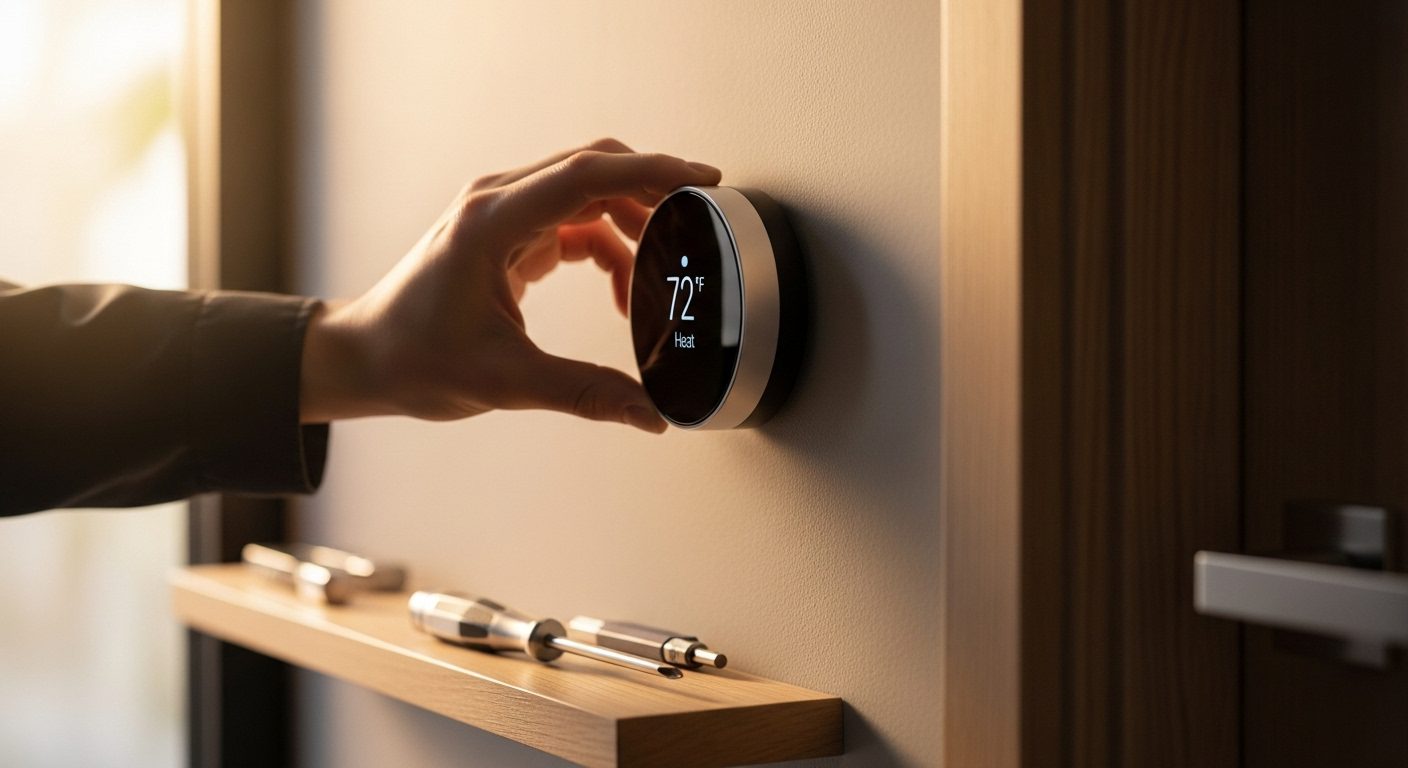
Swapping your old wall thermostat for a smart model is one of the fastest ways to cut energy waste and gain real control over your home’s comfort. If you have been putting off the upgrade because the wiring looks intimidating, you are not alone — but the reality is far simpler than most homeowners expect. With a screwdriver, a voltage tester, and about forty minutes of focused work, you can complete the entire job yourself and skip the professional installation fee.
This guide walks through every stage of how to install a smart thermostat, from the first safety check through WiFi configuration and long-term maintenance. I have helped dozens of homeowners through this exact process, and the most common reaction is surprise at how straightforward it turns out to be. The key is preparation: understanding your wiring, gathering the right tools, and following each step in order.
One concern comes up more than any other — the C-wire. Roughly forty percent of homes lack this dedicated power wire, which many smart thermostats need for continuous operation. That gap stops plenty of people before they even start. I will walk you through four reliable ways to solve the C-wire problem, including adapter kits, the Nest Power Connector, and when it makes sense to run new wire entirely. By the end of this guide, you will have a working smart thermostat and a solid understanding of your HVAC system’s wiring.
Essential Safety Requirements
WARNING: Always turn off power at the circuit breaker before touching any thermostat wiring. Working on live low-voltage circuits can damage your HVAC control board and cause personal injury.
Safety is the one area where shortcuts are never acceptable. Over the years I have seen DIY installations go sideways because someone assumed flipping the thermostat switch was enough, or skipped the voltage test because they “knew” the breaker was off. Taking five extra minutes for safety checks can save you from a blown furnace fuse, a fried control board, or a nasty shock.
Begin at your electrical panel. Find the breaker labeled for your furnace, air handler, or HVAC system and flip it fully to the OFF position. If your panel uses fuses instead of breakers, remove the relevant fuse. Do not rely on the thermostat’s own power switch — that only controls the display, not the 24V wiring behind it.
After killing the breaker, confirm the power is truly off. Try adjusting your current thermostat — the display should be blank and the system unresponsive. Then press a non-contact voltage tester against each wire behind the thermostat faceplate. This inexpensive tool detects residual current from capacitors or mislabeled breakers. I keep one in my kit for every thermostat job and consider it non-negotiable.
If at any point you feel uneasy about handling wires, identifying terminals, or working inside your furnace panel, call a licensed HVAC technician. A professional can finish the job in under thirty minutes, and the peace of mind may be well worth the cost. An improper installation risks damage to both the thermostat and your heating and cooling equipment.
Tools and Materials You Will Need
Gathering everything before you start prevents mid-project runs to the hardware store. Here is the complete list broken down by category.
Essential Tools:
- Phillips head screwdriver (for mounting screws and terminal connections)
- Flathead screwdriver (for prying the old plate and some terminal types)
- Non-contact voltage tester (safety verification — required)
- Drill with a 3/16 inch bit (for wall anchors in drywall)
- Small bubble level (keeps the mounting plate straight)
- Wire strippers (needed if you are extending short wires)
- Needle-nose pliers (for straightening and feeding wires into terminals)
- Smartphone (for setup photos, the companion app, and configuration)
Materials to Have Ready:
- Your new smart thermostat with all included mounting hardware
- Wire labels or masking tape and a marker (for tagging each wire)
- Wall anchors (usually included with the thermostat)
- C-wire adapter kit or Nest Power Connector (if no C-wire is present)
- Pencil for marking drill holes
- Small bowl or magnetic tray for holding screws
Optional but Helpful:
- Painter’s tape (protects the wall surface around the work area)
- Wire nuts (for capping unused wires securely)
- 18-gauge thermostat wire (if you need to extend short runs)
- Electrical tape (for wrapping wire bundles neatly)
- Stud finder with wire-sensing mode (helps locate studs and avoid hidden wires when drilling)
- Trim plate or wall cover ring (hides marks left by the old thermostat)
Pre-Installation Compatibility Check
Before opening the box or removing your old thermostat, confirm that the smart model you purchased will work with your HVAC system. Skipping this step is the most common reason for frustrated returns and wasted afternoons.
Start by popping the faceplate off your current thermostat (leave power on for this step). Snap a clear photo of the wire connections — this picture becomes your primary reference throughout the installation. Count the wires and note which terminal labels each one connects to. Most smart thermostats need at least four wires: R for power, W for heating, Y for cooling, and G for the fan.
The C-wire, or common wire, provides a steady 24V return path that keeps the thermostat powered between heating and cooling cycles. Look for a wire attached to a terminal marked C. If you see one, you are in good shape. If not, gently tug the wire bundle — installers sometimes push extra wires into the wall cavity rather than connecting them. Roughly twenty percent of homes have a C-wire sitting unused behind the thermostat.
Check your HVAC system type. Smart thermostats work with most forced-air systems including gas furnaces, central air conditioners, and heat pumps. They generally do not support high-voltage electric baseboard heaters (120V or 240V line voltage), millivolt gas fireplaces, or older proprietary communication protocols found in some builder-grade systems from the 1990s.
Most manufacturers host online compatibility checkers that take the guesswork out of this process. Google’s Nest compatibility checker (nest.com/compatibility) and Ecobee’s tool (ecobee.com/compatibility) let you enter your wire count and system type for an instant verdict. Honeywell Home offers a similar product selector on their support pages. I recommend running your wire configuration through at least one of these tools before proceeding.
Quick Reference: Wire Color to Terminal Guide
Wire colors are not governed by a strict standard, which means the color you see may not match the convention listed below. Always trust the terminal label over the wire jacket color. That said, most installers follow common conventions, so this reference covers what you will find in the majority of homes.
Standard Wire Color Reference:
- Red (R, Rc, Rh) — 24V power from the transformer. Rc and Rh are separate terminals on some thermostats for separate cooling and heating power. Most systems use a single R wire with a jumper between Rc and Rh.
- White (W, W1, W2) — Heating control. W1 is first-stage heat; W2 is second-stage or auxiliary heat on multi-stage systems.
- Yellow (Y, Y1, Y2) — Cooling control. Y1 is first-stage cooling; Y2 handles second-stage cooling on two-stage compressors.
- Green (G) — Fan control. Activates the blower fan independently of heating or cooling.
- Blue or Black (C) — Common wire. Provides the continuous 24V return path that powers smart thermostats between cycles.
- Orange (O) — Heat pump reversing valve (energized in cooling mode). Used by most heat pump brands including Carrier and Goodman.
- Brown (B) — Heat pump reversing valve (energized in heating mode). Found on some older Rheem and Ruud heat pumps.
- Additional wires (E, AUX, L, S1, S2) — Emergency heat, auxiliary heat, system monitor, and outdoor temperature sensors respectively. Not all systems use these.
If your wire colors do not match the list above, do not panic. The terminal label printed on your old thermostat’s circuit board is the authoritative source. Write down the terminal-to-color mapping and keep it with your installation photos. This information is also useful at the furnace control board end, where the same wires connect to matching terminals.
How to Install a Smart Thermostat: Step-by-Step
With safety verified, tools gathered, and compatibility confirmed, it is time for the actual installation. Follow these five steps in order, and resist the urge to skip ahead.
Step 1: Turn Off Power and Document Existing Setup
Walk to your electrical panel and flip the HVAC breaker to the OFF position. This step is not optional — it protects both you and your equipment. After flipping the breaker, return to the thermostat and verify the display is dark and the system is unresponsive.
Remove the faceplate from your old thermostat. Behind it you will find a mounting plate with several colored wires screwed or pushed into labeled terminals. Take multiple photos from different angles — close-ups of the terminal labels, wide shots showing the full wire bundle, and a shot of the wall area around the thermostat. Store your old thermostat somewhere safe during the swap in case you need to reinstall it as a backup.
Using wire labels or small pieces of masking tape, tag each wire with its terminal letter before you disconnect anything. Write clearly and attach labels snugly so they do not slip off. This labeling step is the single most important thing you can do to prevent wiring mistakes later. Even if your photos turn out perfectly, physical labels let you work confidently without constantly checking a screen.
Step 2: Remove Old Thermostat
With all wires labeled, disconnect them from the terminals. Use needle-nose pliers to gently straighten any bent wire ends — straight wires seat properly in push-in terminals on the new thermostat. Take your time here; these thin wires are your only link between the thermostat and the furnace, and breaking one means fishing new cable through the wall.
Unscrew the mounting plate from the wall. Feed the wire bundle through the center hole as you pull the plate away. If paint has sealed the edges, score around the perimeter with a utility knife to avoid tearing the drywall paper.
Before setting the old plate aside, take this opportunity to check for hidden wires. Gently pull the wire bundle outward — sometimes one or two extra conductors are stuffed into the wall cavity. If you spot an unconnected wire, check its color against your terminal list. An unused wire that runs back to the furnace can serve as your C-wire, saving you from installing an adapter.
Step 3: Install New Mounting Plate
Thread the wire bundle through the center opening of your new thermostat’s mounting plate. Position the plate on the wall and place your level across the top edge. A crooked thermostat catches your eye every time you walk by, so take a moment to get it right.
Mark the screw hole locations with your pencil. If you are mounting directly over drywall without hitting a wood stud, insert the included wall anchors. Drill pilot holes with your 3/16 inch bit, tap the anchors flush, and drive the mounting screws until the plate sits flat and snug against the wall. Avoid overtightening, which can crack the plastic plate or compress the anchors.
Some mounting plates — notably those from Nest and Ecobee — include a built-in bubble level molded into the plastic. This feature makes alignment easy without a separate tool. If your old thermostat left marks or screw holes visible around the new plate, consider sliding a trim plate or decorative ring behind the mounting plate to cover them. Many thermostat manufacturers include one in the box, or you can find universal trim plates online.
Step 4: Connect Wires to New Thermostat
This is where your wire labels pay off. Match each tagged wire to the corresponding terminal on the new thermostat’s base plate. Most current smart thermostats use push-in terminals — insert the straightened wire end firmly until you feel or hear a click. For screw-type terminals, wrap the wire clockwise around the screw and tighten until snug.
Connect wires in this order for the cleanest result:
- C-wire first (if present) — this is the power foundation
- R-wire (24V power from transformer)
- W-wire (heating)
- Y-wire (cooling)
- G-wire (fan)
- Any remaining wires (O/B for heat pumps, W2/Y2 for multi-stage systems)
After making every connection, give each wire a gentle tug. A properly seated wire will not pull free. If one does come loose, reinsert it and verify the terminal is accepting wire correctly. Cap any wires your new thermostat does not use with wire nuts and tuck them behind the plate.
Step 5: Attach Display and Restore Power
Snap or twist the display unit onto the mounted base. Each brand uses a slightly different attachment method — Nest rotates clockwise until it clicks, Ecobee presses straight on, and Honeywell typically uses a snap-fit tab. You will feel the display seat firmly when it is properly aligned.
Return to the electrical panel and switch the HVAC breaker back ON. If you connected a C-wire, the display should light up within seconds. Thermostats that rely on power stealing or internal batteries may take a few minutes to charge enough to boot fully.
The initial startup sequence takes one to five minutes depending on the brand. You will see welcome screens, language selection, and WiFi setup prompts. Work through each screen — skipping configuration steps now often leads to problems that are harder to fix later. Once the display is live and responsive, move on to WiFi configuration.
C-Wire Solutions and Alternatives
If you checked behind your old thermostat and found no wire on the C terminal, you have plenty of company. This is the single biggest hurdle in smart thermostat installation, but it is also one with several proven solutions. Let me walk you through each option from simplest to most involved.
Option 1: Use an Unused Wire
Look at your thermostat cable bundle and count the total number of conductors. If the bundle has more wires than your old thermostat uses, the extras are likely tucked into the wall or wrapped around the cable sheath. Trace the bundle down to your furnace or air handler and look for the same unused wires at the control board. If an extra wire runs continuously from the thermostat location to the furnace, connect it to the C terminal at both ends and you have an instant C-wire at zero cost.
Option 2: C-Wire Adapter Kit or Add-a-Wire Device
When no spare wire is available, a C-wire adapter (sometimes called an add-a-wire kit) provides the next best solution. Ecobee includes their Power Extender Kit in the box with every thermostat, and it installs at the furnace control board in about twenty minutes. The kit multiplexes signals from multiple wires onto fewer conductors, freeing one up to serve as the C-wire. No new wire needs to be pulled through walls.
The basic installation steps are: shut off power at the breaker, open the furnace access panel, connect the adapter module to the control board terminals, reroute the thermostat wires through the adapter, and configure the freed conductor as the C-wire at both ends. The adapter hides inside the furnace cabinet, completely out of sight.
Option 3: Nest Power Connector
Google sells the Nest Power Connector as a standalone accessory for Nest thermostats installed in homes without a C-wire. Unlike the full add-a-wire kits that multiplex signals, the Nest Power Connector is a simple board that wires into the R and C terminals at your furnace, providing a continuous power path to the thermostat. Installation is straightforward: connect it at the furnace control board, attach the thermostat wires, and the Nest detects it automatically during setup. It works with the Nest Learning Thermostat (4th Gen), Nest Thermostat, and Nest Thermostat E.
Option 4: Run New Thermostat Wire
For homeowners who want a permanent, future-proof solution, pulling new 18/5 or 18/7 thermostat wire between the furnace and the thermostat location is the gold standard. This approach gives you enough conductors for any current or future smart thermostat, plus extras for sensors or zone controls.
The process involves purchasing thermostat-rated 18-gauge wire, fishing it through walls or along the basement ceiling, connecting it at both ends, and patching any access holes you had to cut. It is the most labor-intensive option, but HVAC professionals on forums like r/hvacadvice consistently recommend it as the best long-term choice. Professional installation for new wire typically runs between $150 and $300 depending on your home’s layout.
Option 5: Power Stealing Thermostats (Use With Caution)
Certain Nest models can operate without a C-wire by sipping small amounts of power from the R-wire between heating and cooling cycles. This approach works in many homes but has well-documented drawbacks that HVAC professionals frequently warn about on forums like Reddit. Common complaints include rapid system cycling, dead batteries during cold snaps, intermittent WiFi dropouts, and in some cases stress on the furnace control board.
The consensus among experienced DIYers and HVAC technicians is clear: if you can install a proper C-wire solution, do it. Power stealing is acceptable as a temporary measure but should not be your long-term plan.
Apartment and Rental Considerations
Not every thermostat installation happens in a home you own. If you rent an apartment or condo, the process requires extra planning and a conversation with your landlord or property manager before you begin.
Start by checking your lease agreement. Many leases prohibit modifying HVAC equipment or electrical systems, which technically includes swapping the thermostat. However, many landlords are open to the upgrade if you explain the energy-saving benefits and offer to restore the original thermostat before you move out. Get written permission before proceeding.
Some smart thermostats are better suited for rental situations than others. Look for models that include a trim plate in the box to cover any wall marks left by the old thermostat. Choose a thermostat that does not require running new wire or modifying the furnace — an add-a-wire adapter at the furnace may not be possible in a multi-unit building where you lack access to the mechanical room.
Take detailed photos of the original thermostat installation before you change anything. Store the old thermostat and its mounting hardware carefully so you can reinstall it exactly as you found it when your lease ends. This protects your security deposit and keeps your landlord relationship positive.
WiFi Setup and Smart Features Configuration
With the hardware mounted and powered up, the next phase connects your thermostat to your home network and activates its intelligent features. This is what transforms a fancy programmable thermostat into a genuinely smart climate system.
Open the WiFi setup menu on the thermostat display. You will need your network name (SSID) and password. Nearly all smart thermostats connect only on the 2.4GHz band — not 5GHz. If your router uses a single SSID for both bands, temporarily disabling the 5GHz radio during setup can resolve connection failures. Some newer models support the Matter protocol, which simplifies pairing with Apple Home, Google Home, and Alexa ecosystems through a single standardized setup flow.
Download the manufacturer’s companion app (Google Home for Nest, the Ecobee app, Honeywell Home, or Alexa for the Amazon Smart Thermostat). Create an account if you do not already have one, then follow the in-app pairing process. This usually involves entering a code displayed on the thermostat or scanning a QR code printed on the back of the display unit.
Configure these core smart features:
Scheduling: Set distinct temperatures for wake, away, return, and sleep periods. Start with the manufacturer’s default schedule and fine-tune over the first week based on your comfort. Every degree of setback maintained for eight hours saves roughly one percent on your annual heating and cooling bill.
Geofencing: Enable location-based triggers so the thermostat automatically shifts to an energy-saving mode when your phone leaves a set radius and resumes comfort mode as you approach home. A trigger radius of five to ten minutes from your front door works well for most commutes.
Learning Features: If your thermostat has learning capability (Nest models are best known for this), allow it at least a month of data before judging its accuracy. These algorithms observe when you manually adjust temperatures and gradually build a personalized schedule.
Voice Assistant Integration: Link the thermostat to your preferred voice platform — Alexa, Google Assistant, or Apple HomeKit. Once connected, commands like “set the living room to 72 degrees” become second nature, and you can build routines that adjust temperature alongside lights and locks.
Energy Reports: Turn on monthly energy reporting. These dashboards show runtime hours, estimated savings, and comparison to previous months, giving you concrete data to justify the upgrade.
System Testing and Verification
Before you declare the job finished, run through a systematic test of every function. Catching a wiring error now prevents uncomfortable surprises during the next heat wave or cold snap.
Test heating first. Set the thermostat five degrees above the current room temperature. Within thirty seconds you should hear the furnace ignite or the heat pump engage. Feel your supply vents — warm air should flow within two to three minutes. Let the system run for a full five minutes, then return the setpoint to normal.
Next test cooling (if your home has central air). Set the temperature five degrees below the current reading. The outdoor compressor should start within a minute, followed by cool air at the vents. Again, let it run for five minutes before returning to your normal setting.
Test fan-only mode by selecting the “Fan” option on the thermostat. The blower should run continuously without any heating or cooling activity. This confirms your G-wire connection is working.
Verify remote control by adjusting the temperature through the companion app on your phone. The change should register on the thermostat display within seconds. If you connected a voice assistant, test a spoken command as well.
Monitor the system over the first 24 hours and confirm that scheduled temperature changes happen on time, the system holds set temperatures without overshooting, no rapid cycling occurs, the WiFi connection stays stable, and the battery or power indicator remains steady.
Troubleshooting Common Installation Issues
Even careful installations can hit snags. Here are the most frequent problems and how I resolve them.
Thermostat Will Not Turn On
Confirm the breaker is on — it sounds obvious, but flipping the wrong switch is remarkably common in panels with vague labels. Check the R-wire connection at both the thermostat and furnace. Use your voltage tester to verify 24V between the R and C terminals. If there is no voltage, you may have blown the 3-amp or 5-amp fuse on the furnace control board. This small automotive-style fuse costs a few dollars at any hardware store and is the most common casualty of a brief short circuit during installation.
System Short Cycling
When your heating or cooling system turns on and off in rapid succession, the usual suspect is a loose or missing C-wire connection. Double-check every wire terminal. If the connections are solid, the issue may be in the thermostat’s cycle rate setting. Look in the installation menu for “cycle rate,” “comfort setting,” or “CPH” (cycles per hour) and adjust to match your system type — gas furnaces typically need three CPH, while heat pumps may work better at a lower setting.
No Heat or No Cooling
Verify that the W wire (heat) and Y wire (cool) are connected to the correct terminals. For heat pump systems, the O/B terminal configuration matters significantly — check your installation photos to confirm whether the old thermostat used the O or B setting. If you have a Goodman, Carrier, or similar heat pump, O is standard. Some older Rheem and Ruud models use B instead. The thermostat’s configuration menu lets you toggle between these options.
WiFi Connection Failures
Smart thermostats are notoriously selective about WiFi. Confirm you are joining the 2.4GHz band, not 5GHz. Temporarily disable MAC filtering and WPS on your router. Move the thermostat within clear range of your router during initial setup — you can reposition your router or add a mesh node later if the signal is weak at the thermostat’s wall location. Check for firmware updates on both the thermostat and your router.
Display Shows Error Codes
Common error codes and their meanings:
- E1 / E2: Wiring error — recheck every terminal connection
- E23 / E24: Wiring short — inspect for crossed or touching bare wires
- N1 / N2: No power detected — check C-wire, furnace fuse, and breaker
- E74: WiFi failure — restart both the thermostat and your router
For codes not listed here, consult your specific model’s manual or the manufacturer’s online support database.
Professional Installation: When to Call an Expert
DIY installation works well for the majority of straightforward setups, but certain situations call for a professional touch. Recognizing these scenarios early can save you from costly mistakes.
Complex HVAC Systems: Multi-stage heating and cooling, dual-fuel systems (gas furnace paired with a heat pump), and multi-zone setups involve additional wires and configuration steps that go beyond a basic swap. A misconfigured dual-fuel system, for example, can lock out the auxiliary heat or cause the compressor to run when outdoor temperatures are too low.
High-Voltage Systems: If the wires behind your current thermostat are thick (12 or 14 gauge) and your voltage tester reads 120V or 240V, stop immediately. These are line-voltage systems used with electric baseboard heaters and some boilers. Smart thermostats designed for 24V low-voltage systems will not work and could be damaged if connected to line voltage. You need a line-voltage smart thermostat specifically rated for your system.
Insufficient Wiring: Homes with only two wires running to the thermostat face the toughest compatibility challenge. While some adapters and power-stealing thermostats claim to work with two-wire setups, forum discussions on r/hvacadvice and r/thermostats consistently report problems. A professional can evaluate whether running new wire is feasible and quote an accurate price.
Warranty Concerns: Read your HVAC system’s warranty documentation before proceeding. Some manufacturers require that any control device installed on the system be handled by a licensed technician to maintain warranty coverage.
Professional installation generally costs between $100 and $200 for a straightforward swap, or $200 to $400 if new wiring needs to be run. Many utility companies offer rebates that cover part or all of this cost when you upgrade to an ENERGY STAR certified smart thermostat, so check with your local utility before scheduling an appointment.
Smart Thermostat Rebate Programs
One of the most overlooked reasons to upgrade is the wide range of rebate programs available through utility companies and government energy offices. These programs can significantly reduce the effective cost of both the thermostat and professional installation.
Many electric and gas utilities offer rebates between $25 and $100 for installing an ENERGY STAR certified smart thermostat. Some programs provide the rebate as a bill credit, while others mail a prepaid card or direct deposit. Focus on Energy (Wisconsin), SRP (Arizona), and similar regional programs have been offering these incentives for years and continue to expand them.
To qualify, you typically need to provide proof of purchase, the thermostat model number, and sometimes a photo of the installed unit. ENERGY STAR maintains a list of certified smart thermostats on their website, and most popular models from Nest, Ecobee, and Honeywell carry the certification. Check your utility’s website or call their customer service line to ask about current rebate programs — new ones launch regularly and existing ones often increase their incentive amounts.
Some rebate programs also offer free or discounted professional installation as part of the deal. If you were on the fence about hiring a technician, a utility-sponsored program might make professional installation the same cost or even cheaper than doing it yourself.
Maximizing Energy Savings
A properly configured smart thermostat can trim ten to twenty-three percent off your annual heating and cooling costs. The technology handles much of the optimization automatically, but a few deliberate settings maximize your return.
Set strategic temperature setbacks. Dropping the setpoint by seven to ten degrees for eight hours each day — typically while you sleep and while you are at work — saves roughly ten percent annually. Every single degree of setback maintained for eight hours translates to about one percent savings on your bill. The numbers add up faster than most people expect.
Use the Away mode consistently. When you leave home for more than four hours, let the thermostat drop into an energy-saving setback rather than maintaining your comfort temperature for an empty house. Smart thermostats with geofencing handle this automatically, but you can also trigger Away mode through the app or a voice command as you walk out the door.
Enable adaptive recovery (called “Early On” on Nest, “Smart Home/Away” on Ecobee). This feature learns how long your home takes to reach the target temperature and starts the system early so it hits your setpoint right on schedule rather than overshooting and wasting energy.
Recommended temperature setpoints for efficiency:
- Winter heating: 68 degrees F when home and active, 60 degrees F when away or sleeping
- Summer cooling: 78 degrees F when home, 85 degrees F when away
- Adjust in one-degree increments to find your personal comfort floor
If your utility offers time-of-use rates, program the thermostat to pre-heat or pre-cool your home during off-peak hours, then let the thermal mass of your house coast through the expensive peak period. This strategy can save an additional ten to fifteen percent on top of the basic setback savings.
Maintenance and Long-Term Care
Smart thermostats need very little upkeep, but a few periodic tasks keep them running accurately for a decade or more.
Wipe the display and housing with a soft dry cloth every few months. Dust buildup on the internal temperature sensor can cause readings to drift a degree or two higher than actual room temperature. Never spray cleaners or use damp cloths — liquid ingress damages the electronics behind the display.
Keep the firmware current. Manufacturers release updates that improve efficiency algorithms, patch security vulnerabilities, and occasionally add new features. Enable automatic updates in the app settings, or check manually once a month.
Replace your HVAC air filter on schedule — monthly for standard one-inch filters, or per the manufacturer’s recommendation for thicker media filters. A clogged filter forces the system to work harder, which negates the efficiency gains from your smart thermostat and can cause the blower motor to overheat.
Once a year, power down the system and check the wire connections behind the thermostat. Seasonal temperature cycling can loosen terminals over time. Gently tug each wire to verify it is still seated. If any feel loose, reinsert them firmly.
Most smart thermostat apps include a calibration offset setting. If you notice the displayed temperature consistently differs from a separate thermometer by more than a degree, enter an offset value to bring them into alignment.
Smart Home Integration Tips
Connecting your thermostat to the broader smart home ecosystem multiplies its usefulness. Here are the integrations that deliver the most practical value.
Voice control through Alexa, Google Assistant, or Apple HomeKit makes temperature adjustments frictionless. Set up custom routines — a “Goodnight” command that lowers the temperature, turns off lights, and locks doors is a popular starting point. Most modern thermostats support at least two of the three major voice platforms, and models that support the Matter protocol can join all three simultaneously.
Remote temperature sensors, included with Ecobee and available as accessories for Nest and Honeywell, let the thermostat prioritize comfort in occupied rooms rather than the hallway where it is mounted. Place sensors in bedrooms and living areas, and the system will average temperatures across occupied spaces or focus on whichever room has detected motion.
Smart vent integration from brands like Flair and Keen Home adds basic zoning without retrofitting your ductwork. These battery-powered vents open and close based on room-level temperature targets and occupancy data, working with your thermostat to direct conditioned air where it is actually needed.
Automation platforms like IFTTT and the built-in routines in Google Home and the Alexa app enable advanced triggers: adjust temperature based on tomorrow’s weather forecast, activate vacation mode when your calendar shows an out-of-town event, or coordinate with smart blinds to take advantage of passive solar heating in winter.
Brand-Specific Installation Tips
Each thermostat brand brings its own installation nuances. These tips address the specific quirks and recent updates for the four most popular brands.
Nest Thermostat (Google)
The Google Nest lineup now includes the Nest Learning Thermostat (4th Gen), released in 2024, along with the more affordable Nest Thermostat and the Nest Thermostat E. The 4th Gen Learning model features a larger, higher-resolution display and an updated Soli radar sensor for more precise occupancy and proximity detection. During installation, pay close attention to the O/B wire configuration if you have a heat pump — the automatic detection is generally reliable but occasionally needs manual correction through the settings menu.
If your home lacks a C-wire, the Nest Power Connector is the recommended solution. It wires directly to the R and C terminals at the furnace control board and provides continuous power to the thermostat without multiplexing other signals. Nest thermostats can also operate via power stealing from the R-wire, but as noted earlier, this approach can cause short cycling and WiFi instability on some systems. The built-in level in the Nest mounting plate is excellent, and the display rotates to compensate if the plate is slightly off-plumb.
Ecobee
Ecobee’s current flagship, the Smart Thermostat Premium, ships with the Power Extender Kit (PEK) included in the box. The PEK is one of the most reliable add-a-wire solutions available — it installs at the furnace and frees up a wire to serve as the C-wire without pulling new cable. Unlike Nest, Ecobee thermostats require either a C-wire or the PEK; they do not support power stealing.
The included remote room sensor should be placed in your most-used living space rather than near the thermostat itself. During initial setup, the Ecobee wiring wizard asks detailed questions about your HVAC configuration, which takes a few extra minutes but prevents the guesswork that leads to callbacks. Ecobee also supports Apple HomeKit natively, making it a strong choice for households invested in the Apple smart home ecosystem.
Honeywell Home
Honeywell Home thermostats, particularly the T9 and T10 Pro models, offer the widest HVAC compatibility of any major brand. They handle multi-stage heating and cooling, heat pumps, and dual-fuel systems without requiring additional configuration modules. The mounting plate is larger than Nest or Ecobee plates, which conveniently covers wall marks and old screw holes left by previous thermostats.
RedLINK room sensors create a wireless mesh network for whole-home temperature monitoring. Proper placement matters — avoid exterior walls, windows, and direct sunlight. The Honeywell Home app walks you through the Resideo integration with both Alexa and Google Assistant, and firmware updates are delivered automatically through the app.
Amazon Smart Thermostat
Amazon’s thermostat requires a C-wire — there is no power stealing option and no included adapter kit. If your home lacks a C-wire, budget for an add-a-wire kit or the Amazon Smart Thermostat Compatible C-Wire Adapter sold separately. The hardware itself is compact with a relatively small display, so double-check your wire labels carefully since the smaller terminal area leaves less room for error during connection.
The standout feature is how tightly the thermostat integrates with Alexa. Setup is handled almost entirely through the Alexa app, and the thermostat supports Hunches — Alexa can automatically adjust the temperature when it detects you have left home. The included wire labels are thoughtfully designed with clear terminal markings; use them even if you brought your own labels.
Trim Plate and Wall Repair Tips
A detail that many installation guides overlook: your new thermostat will likely be a different size and shape than the old one, which means marks, paint lines, or old anchor holes may be visible around the edges of the new mounting plate.
Check whether your thermostat included a decorative trim plate in the box. Nest and Ecobee both offer optional cover plates that sit behind the mounting base and extend outward an inch or two to hide imperfections. If nothing was included, universal trim plates are available online for under fifteen dollars in standard white, gray, and black finishes.
For minor wall damage, a small dab of spackle applied with a putty knife and touched up with matching paint makes the area invisible behind the new thermostat. If the old anchor holes are large, fill them with spackle, let them dry overnight, sand smooth, and paint before mounting the new plate.
Frequently Asked Questions
Can I install a smart thermostat myself?
Yes. Most homeowners complete the installation in 30 to 60 minutes using basic hand tools. If you can turn off a circuit breaker, follow a wiring diagram, and use a screwdriver, you can handle this project. Always verify power is off with a voltage tester before touching any wires, and call a professional if anything feels unclear.
Do you need an electrician to install a smart thermostat?
No electrician is needed for standard 24V low-voltage systems, which cover the vast majority of forced-air furnaces, central air conditioners, and heat pumps. However, if your thermostat wiring is high-voltage (120V or 240V, typically used with electric baseboard heaters), or if you need to run new wire through finished walls, a licensed electrician or HVAC technician is the safer choice.
How many wires do you need for a smart thermostat?
Most smart thermostats need a minimum of four wires: R (power), W (heat), Y (cool), and G (fan). A fifth wire — the C-wire or common wire — is strongly recommended and required by some models. If you have fewer than four wires, you will need an adapter kit or new thermostat wire pulled between the furnace and the thermostat.
What if I don’t have a C-wire?
You have several options: check for an unused wire tucked into the wall behind the thermostat, install an add-a-wire adapter kit (Ecobee includes one in the box), use the Nest Power Connector for Nest thermostats, or run new 18-gauge thermostat wire. Avoid relying on power stealing as a permanent solution, as it can cause system cycling problems.
How much can I save with a smart thermostat?
Energy savings typically range from 10 to 23 percent on heating and cooling costs. For a home spending $2,000 per year on HVAC, that works out to $200-$460 in annual savings. Actual results depend on your climate, insulation quality, and how aggressively you use scheduling and setback features.
Will a smart thermostat work with my old HVAC system?
Smart thermostats work with most 24V forced-air systems including gas furnaces, central air conditioners, and heat pumps. They generally do not work with high-voltage electric baseboard heating, millivolt systems, or some proprietary communication protocols. Run your system details through the manufacturer’s online compatibility checker before purchasing.
Do I need WiFi for a smart thermostat?
A smart thermostat can function as a basic programmable thermostat without WiFi, but you lose remote control, energy reports, weather adaptation, voice commands, and software updates. For the full experience, a reliable WiFi connection is strongly recommended.
How long do smart thermostats last?
Expect 10 to 15 years of hardware life. Smart thermostats have no moving parts, so physical failures are rare. Software support timelines vary by manufacturer. The energy savings payback period is typically one to two years, making them a strong long-term investment even if you replace the unit before it fails.
Can I install multiple smart thermostats for zone control?
Yes, if your home has multiple HVAC zones with separate equipment, you can install a smart thermostat on each zone and manage them through a single app. However, you cannot create zones by installing multiple thermostats on a single HVAC system without adding motorized dampers and a zone control board.
What is the difference between smart and programmable thermostats?
Programmable thermostats follow a fixed schedule you set manually. Smart thermostats add WiFi connectivity, remote control via phone apps, learning algorithms that adapt to your habits, integration with voice assistants and other smart devices, and detailed energy usage reports. The connectivity and automation justify the higher price for most households.
Conclusion
Learning how to install a smart thermostat is one of those home improvement projects that delivers outsized rewards for the time and effort involved. In roughly an hour of careful work, you gain remote climate control, automated scheduling, energy usage insights, and integration with the smart home platforms you already use. For most homes with standard 24V forced-air systems, the process is well within the reach of anyone comfortable with a screwdriver and a voltage tester.
The critical steps to remember: always kill power at the breaker before touching wires, label every conductor before disconnecting it, and photograph the original wiring from multiple angles. If your home lacks a C-wire, choose a proper solution — an adapter kit, the Nest Power Connector, or new thermostat wire — rather than relying on power stealing for the long term. Test heating, cooling, and fan functions before calling the job done, and monitor the system over the first 24 hours for any cycling or connectivity issues.
Your new thermostat will begin learning your schedule and preferences within days. Enable geofencing and adaptive recovery, check your first energy report after a month, and fine-tune the setpoints from there. With proper setup and occasional maintenance, a smart thermostat pays for itself within one to two years and continues delivering savings for a decade or more.
For more home improvement and smart home technology coverage, explore our other guides on energy efficiency, HVAC maintenance, and connected home automation.

![12 Best Prime Day Air Conditioner Deals [cy]: Top SACC Picks](https://www.guidespot.com/wp-content/uploads/2026/06/featured-update-97366-1782326625199-370x245.webp "12 Best Prime Day Air Conditioner Deals 2026: Top SACC Picks")